
WooCommerce 8.2 introduced High-Performance Order Storage (HPOS), which uses WooCommerce’s order tables (custom tables) to store order data instead of the default WordPress post and postmeta tables.
Recognizing the performance benefits of this approach, especially for stores with hundreds or thousands of orders, Meta Box is now officially compatible with WooCommerce HPOS. With this support, Meta Box fields can now be stored in WooCommerce's dedicated order tables for better performance.

What is WooCommerce HPOS?
Before HPOS, WooCommerce stored orders as WordPress posts. Order meta went into wp_postmeta, the same place as post meta, page meta, and other custom field
data.
That works. But when a store has a large order history, querying order data from these shared tables can become slower.
High-Performance Order Storage (HPOS) changes this architecture by introducing dedicated database tables specifically designed for WooCommerce orders, separating order storage from WordPress's general-purpose post tables, including:
wc_orderswc_order_addresseswc_order_operational_datawc_orders_meta
This dedicated structure is designed to make order queries more efficient and help WooCommerce stores scale as their order volume grows. That helps with:
- Faster admin and checkout performance, especially for stores with a large order history.
- Better scalability as order volume grows.
- Simpler backups, since order data is separated from regular post content.
Why This Matters for Meta Box
Meta Box is widely used to add custom fields and structured data to WordPress websites.
In real-world projects, many stores need more than the default WooCommerce order fields. For instance, you might need to add customer preferences, internal order notes, delivery time, or additional fulfillment information, etc.
With Meta Box, you add those fields to the order screen the same way you add fields elsewhere in WordPress. And the order field values will be written to wc_orders_meta instead of treating the order like a normal post.
How to use Meta Box with WooCommerce HPOS
The workflow does not change much. You still create a field group and attach it to WooCommerce orders.
Enable HPOS in WooCommerce
Go to WooCommerce → Settings → Advanced → Features and enable High-Performance Order Storage.
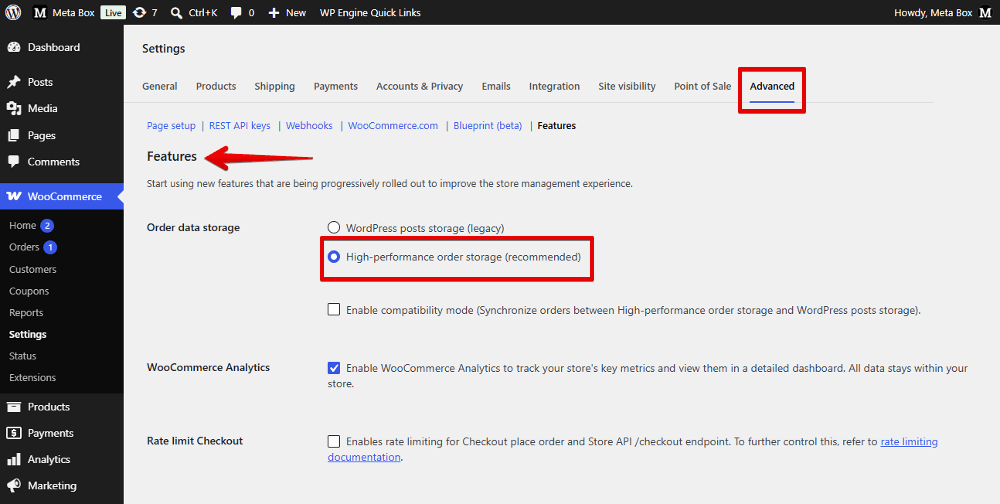
If the store already has orders, wait until the sync from the old storage to HPOS finishes before you rely on the new tables.
Create a Field Group for Orders
Use MB Builder or code to create a field group as usual. For example, I created the order_manager and assigned it to WooCommerce orders.

Check Where the Data is Stored
After you save a value on an order, you should see a new row in wc_orders_meta.
That is the main signal that the field is using HPOS storage.
Video Version

Summary
By supporting HPOS from Meta Box, you can optimize website performance through how the order data is stored. As a result, querying and managing data from thousands of orders becomes more efficient.
Update to the latest version of Meta Box and explore this feature right now!

 Custom Tables vs Post Meta in WordPress: Which Should You Choose?
  How to Add Custom Fields to Products in WooCommerce - Using Meta Box and Bricks
  How to Add Custom Fields for WooCommerce - P2 - Using MB Views
This is a great update, thank you for this. Look forward to putting it into action.
I did notice however that the video is private and cannot be viewed.
Thanks
Thanks for your comment, the video is now public!
Finally!