
In the previous release, you can create custom models without touching any code. And this update improves how you connect and work with those models:
- New Custom Model field type: select one or multiple model items. It’s similar to the Post field.
- New Model object type in relationships: connect models to posts, terms, users, and other models.
New Field Type: Custom Model
What is the Custom Model Field?
In addition to 40+ field types, Meta Box has just released a new one named Custom Model. It lets you select one or more items from a specified custom model. It works like the Post field.
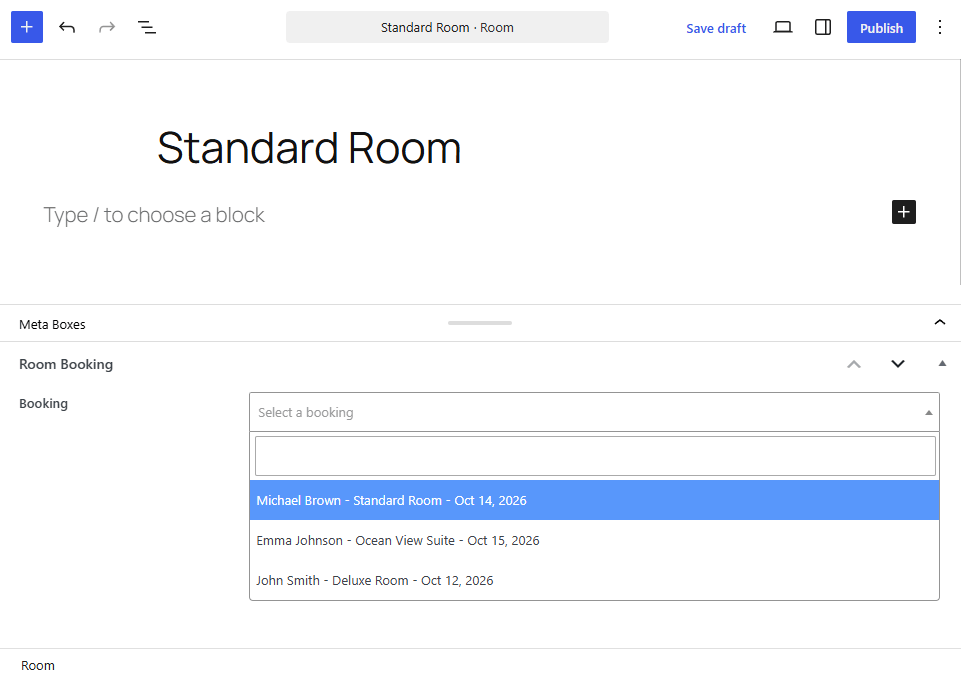
For example, you manage hotel rooms through a room custom post type, while bookings live in a booking custom model (including guest name, check-in, check-out, status). On each room edit screen, editors need to attach the current booking for that room.
Add a Custom Model field, point it at the booking model, and save. Meta Box stores the booking ID on the room. In the template, you load that booking row and show check-in/check-out next to the room.
How to Use the Custom Model Field?
You need to have a custom model and add items to it..
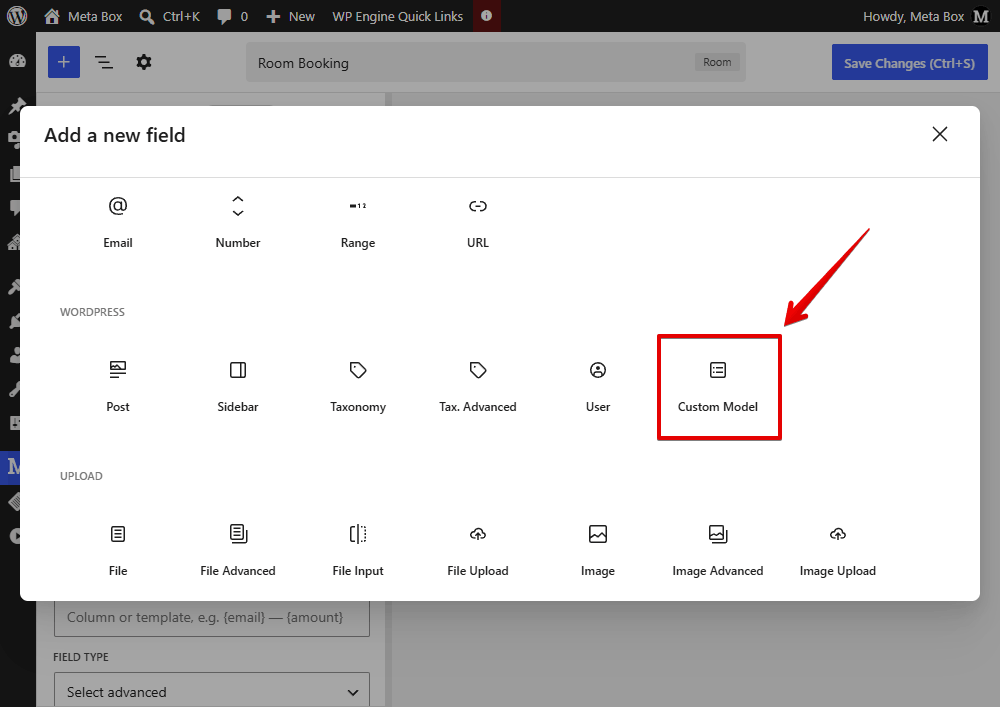
When you add a new field, Custom Model is in the field list.
Then, choose the model that you want to select items from. This setting is required:
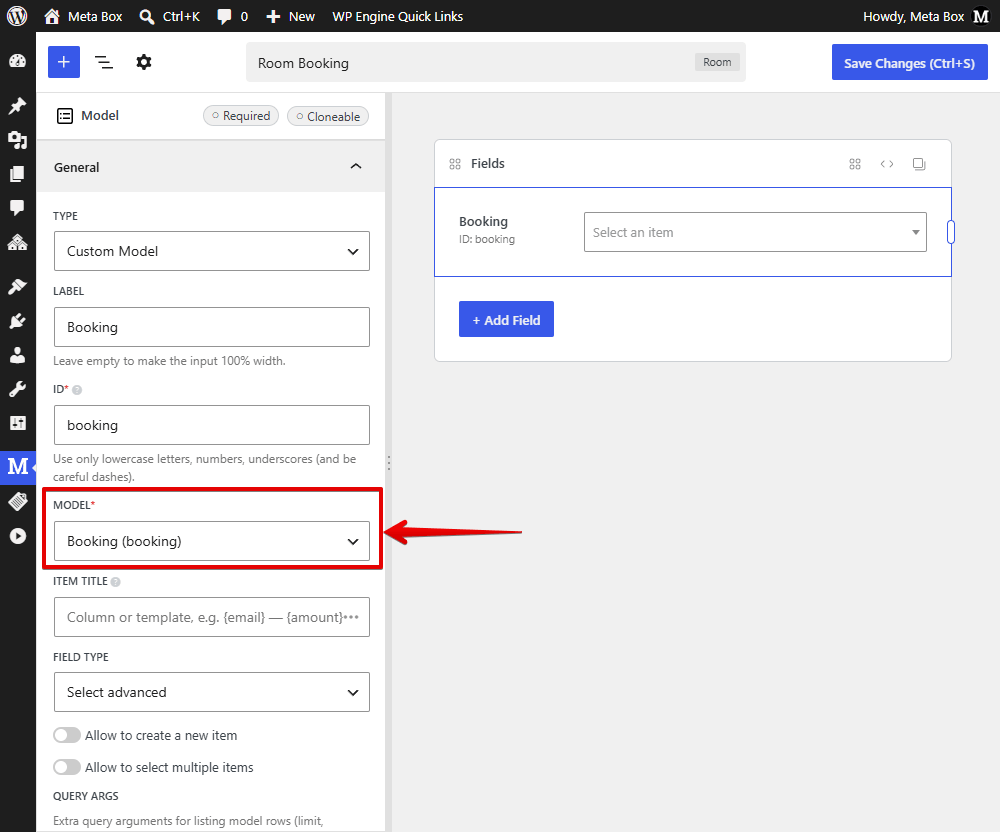
Similar to the Post field, you can also set how options are displayed (dropdown, checkbox list, or radio).
In the post editor, you can then choose the items as in the demo image above.
Connect Models with Other Objects Using Relationships
With this new object type, you can now set up one-sided and bi-directional relationships between custom models and posts, terms, users, or other models as well.
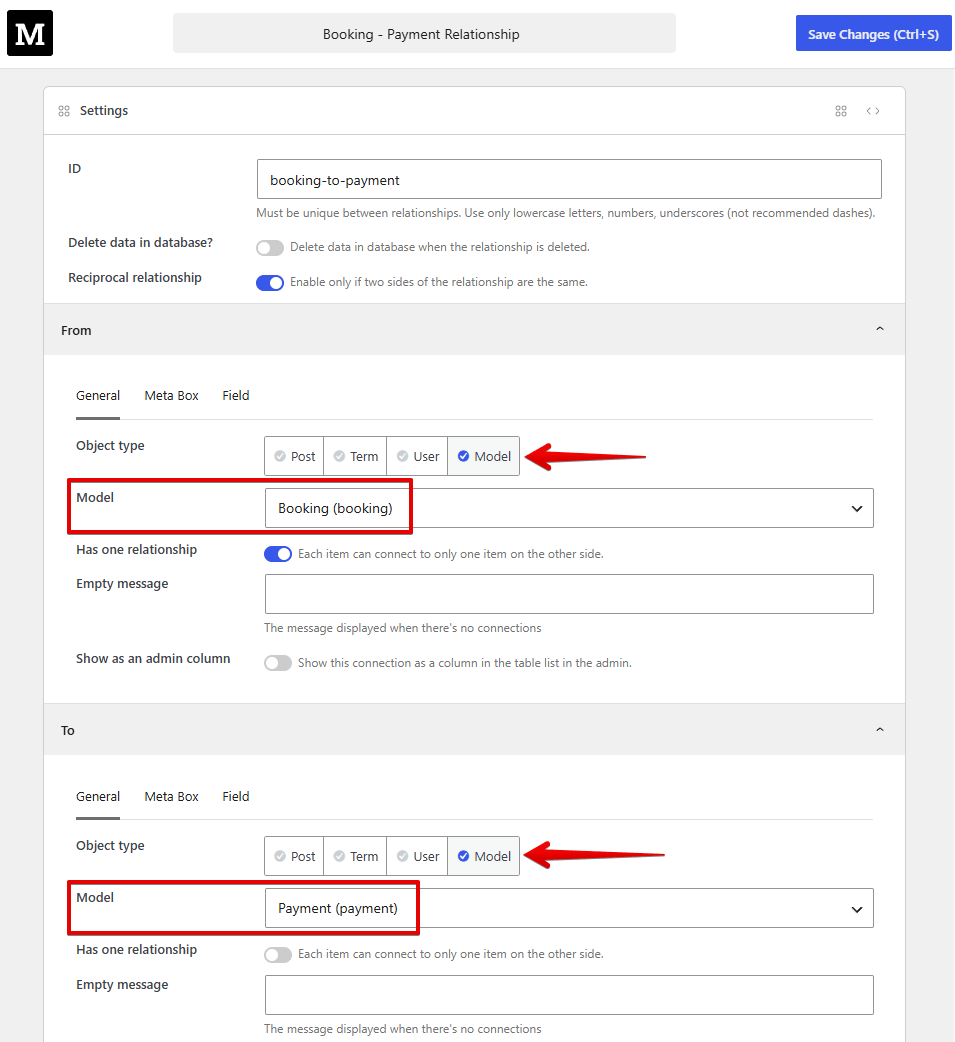
Familiar options such as Has one relationship, Empty message, and Show as an admin column are still work as usual.
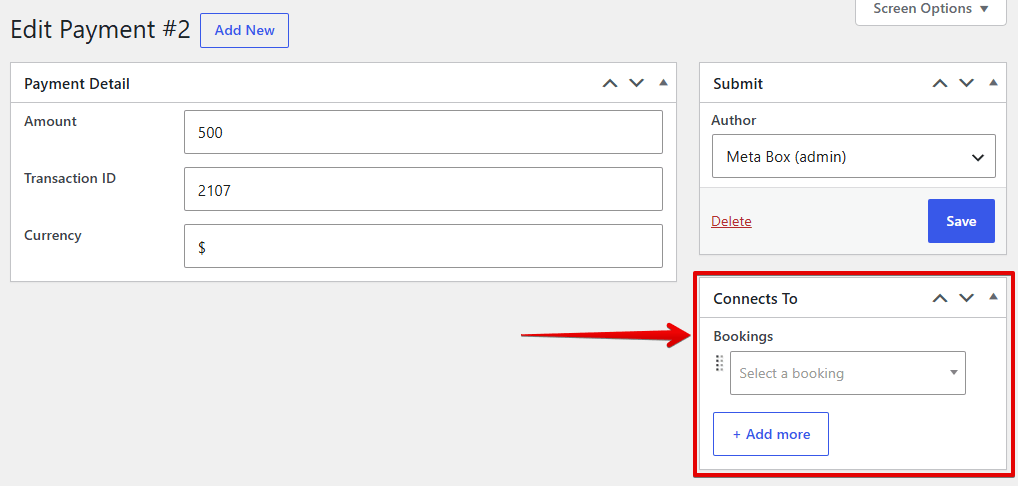
Then, on the model edit screen, choose the item you want to connect:
Last Words
You can visually and easily connect custom models to the rest of your site without storing IDs by hand.
Use the Custom Model field when you only need to pick related model items on an edit screen. Use Model in MB Relationships when you need one-sided or bi-directional links with posts, terms, users, or other models.
Update Meta Box and try these features. If you have feedback, share it with us.

 New Features: Create Custom Models and Edit Custom Table Columns in the Builder
  What’s New in Meta Box AIO 3.3.0: Powerful Updates for Models, Columns, and Views
  How to Create a Classified Ads Website using Meta Box