
Where WordPress stores your custom fields rarely matters on a small site. As your post count grows, searches and reports across those fields can slow down sharply. In a benchmark I ran, a three-field search across 100,000 posts took 750 ms with post meta and just 5 ms with a custom table using typed columns and indexes.
Post meta is the WordPress default and usually a good fit for fields you display on individual posts. Custom tables can make filtering, sorting, and reporting across many records much faster, but filtering posts by those fields requires custom queries. They also need more maintenance. The custom tables vs post meta choice comes down to how you use your fields and whether the speed gain justifies the extra work.
To help you decide, this guide explains where the slowdown comes from, shares the full benchmark results for datasets of 1,000 to 100,000 records, and shows how to set up a custom table in Meta Box.
- Custom Tables vs Post Meta at a Glance
- How WordPress Stores Custom Fields in Post Meta
- What Is a Custom Table?
- When Is Post Meta the Right Choice?
- When Should You Use a Custom Table?
- Query Performance: What a Benchmark Shows
- What Custom Tables Cost You
- How to Set Up a Custom Table with Meta Box
- Choose Custom Tables or Post Meta Based on Your Queries
- FAQs
Custom Tables vs Post Meta at a Glance
| Post meta | Custom table | |
| How data is stored | One row per field, per post, in wp_postmeta |
One row per post, one column per field, in a table you name |
| What you need | Nothing extra; it's the WordPress default | With Meta Box, the premium MB Custom Table extension; otherwise, custom code |
| Filtering posts by field values | Works with WordPress's standard post queries | Needs an extra query written in code |
| Speed as data grows | Searches and reports across many posts slow down | Searches and reports slow down far less, most of all once columns are given types and indexes (explained below) |
| Compatibility | Plugins that read post meta see the fields | Standard meta queries can't filter by these fields; custom code can |
| Maintenance | Add or remove fields freely | You look after the table's structure and any moving of existing data |
| How to decide | Do I mostly show these fields on the post they belong to? | Will I search, sort, or report on these fields across many posts? |
How WordPress Stores Custom Fields in Post Meta
WordPress keeps custom field values in the wp_postmeta table, which has four columns: an ID, the post ID, the field's key (meta_key), and its value (meta_value). Every field on every post gets its own row.
This guide uses a hiking trail directory as its example. Each trail has ten fields, including length, difficulty, and ranger email. Visitors search by region, difficulty, and length, and the site owner wants to create a monthly report of average trail length by region. In post meta, one trail with ten fields is ten rows, and 10,000 trails are 100,000 rows.
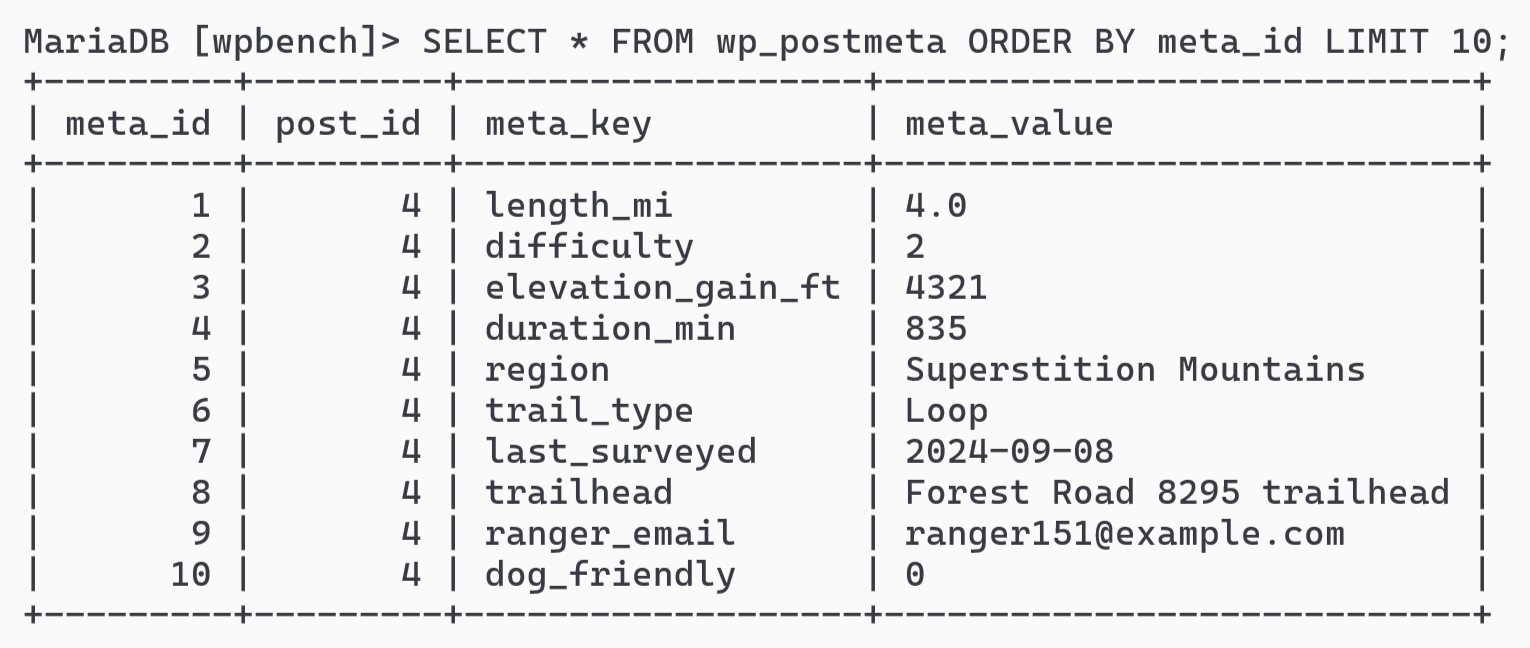
Meta Box stores fields the same way by default, using each field's ID as the key. This is part of the core functionality of the free Meta Box Lite plugin, and Meta Box's database docs cover the details. If you're still deciding whether something should be a custom field at all, start with Meta Box's guide to custom post types, taxonomies, or custom fields.
The post meta design is flexible. Adding a field just adds rows, with no change to the database's structure. That flexibility has a downside when you search. Every value is stored as text, whether it's a number or a date. The database keeps an index (a lookup list) of the field names, but not of the values. To find a match, the database has to read through the values one by one. A search for "moderate or harder trails in the Sawtooth Range, 5 to 12 miles long" involves three fields, so the database has to match three separate rows for every trail and convert each length from text to a number before comparing it.
What Is a Custom Table?
A custom table is a database table you create to hold the fields for one type of content, such as products or events. If you create the custom table with Meta Box, it has one row per post and one column per field. Each trail becomes a single row in the table: length in one column, difficulty in the next, and so on. Each column can have a proper type, such as a number for length or a date for last surveyed, so the database compares values directly instead of converting text. A column can also have an index, so the database can find matching rows without reading every row.

In Meta Box, custom tables come from the premium MB Custom Table extension. The free plugin can't create them. The extension creates custom tables in two forms:
- A custom table for a post type. The trail stays a normal WordPress post with its title, URL, and template. Only the field values move to the custom table.
- A custom model. There's no post at all. The whole record lives in the custom table and gets its own admin list and edit screen. Models have no front-end pages or permalinks, so they suit data that isn't content, such as transactions or activity logs. A membership site that records every login attempt, for example, needs those records for reports and exports but never shows them to visitors.
The trail directory would use a custom table for a post type, since each trail needs its own page.
When Is Post Meta the Right Choice?
Stick with post meta when:
- Fields are displayed on the post they belong to, like the
lengthandtrailheadon a trail page. WordPress loads all of a post's meta in one query, so reading a post's fields stays fast. - Searches and reports already run quickly enough. In the benchmark below, a three-field search across 10,000 trails took 39 ms on post meta.
- Other plugins, page builders, or custom queries need the data. Many plugins and page builders expect to find field data in post meta.
For many blogs and small directories, post meta works for every field, and a custom table adds setup and maintenance work for a speed gain nobody would notice.
When Should You Use a Custom Table?
Use a custom table when:
- Searches or reports are too slow, or will be as the number of records grows, such as with bookings or form submissions.
- Visitors filter results by several fields at once, or you run reports that total or average data across many records. Typical cases include a trail search by region, difficulty, and length, and event listings by date and venue.
- Speed matters under load, such as a busy search page or a dashboard that runs reports all day.
- The data isn't content. Payments and logs suit a custom model, which keeps those records in one table that's easy to export.
WooCommerce uses custom tables for orders for similar reasons. Its High-Performance Order Storage (HPOS) moves orders out of posts and post meta into dedicated tables. Meta Box now supports HPOS, so with HPOS enabled, any order fields you add with Meta Box are stored in WooCommerce's order meta table, wc_orders_meta, instead of wp_postmeta.
Query Performance: What a Benchmark Shows
Reading one post's fields is quick with post meta or a custom table. The speed gap opens when you search and report across many posts, and it widens as the number of posts grows.
How the Test Was Run
I loaded a generated trail dataset into a fresh local WordPress install at three sizes (1,000, 10,000, and 100,000 trails). I stored the data three ways: in post meta, in a custom table with every column left as text, and in a custom table with typed columns and indexes on region, difficulty, and length. The test compares storage layouts rather than plugin code, so I created the custom tables directly in the database, with the same structure MB Custom Table produces, and queried them the way its docs recommend.
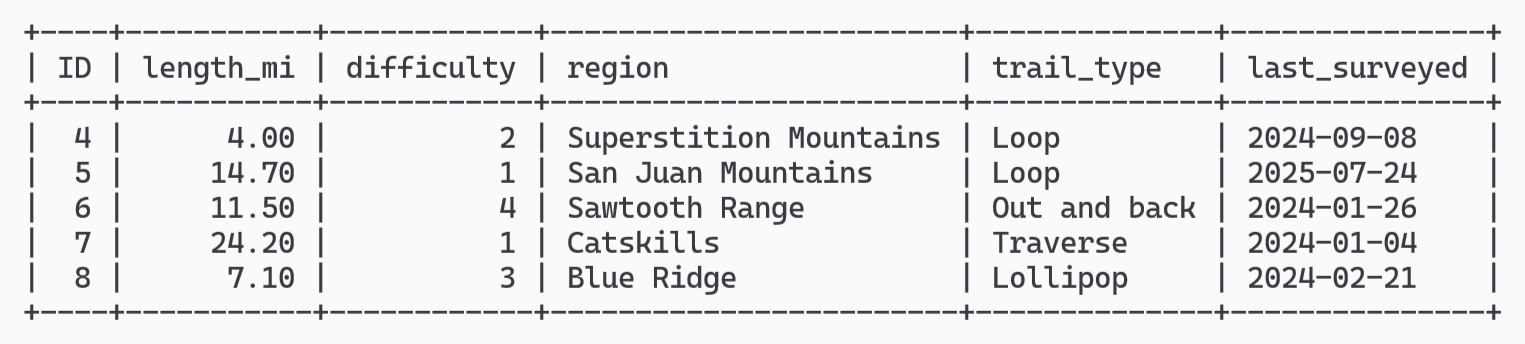
I ran each query 25 times from a command-line script that loads WordPress and uses its own query functions, not through a web page. The table below shows the median time. The timings cover the query step as WordPress runs it, for one visitor at a time. They exclude the time WordPress takes to build the page around the results. On a real site, region could also be a taxonomy, since it's a label many trails share. I kept it as a field so all three layouts hold the same data.
| Trails | Search query, post meta | Search query, typed and indexed table | Length report, post meta | Length report, typed and indexed table |
| 1000 | 7 ms | 4 ms | 17 ms | 1.7 ms |
| 10000 | 39 ms | 5 ms | 290 ms | 12 ms |
| 100000 | 750 ms | 5 ms | 3 ms | 150 ms |
The search query finds trails by region, difficulty, and length, shortest first. The report averages trail length by region. Loading a single trail's ten fields took under 1 ms in all three setups.
What the Numbers Show
Up to 10,000 trails, post meta holds up. At that size, the search took 39 ms and the report 290 ms. At 100,000, the post meta search took three-quarters of a second and the report three seconds. Storage grows too: the 100,000 trails made a million post meta rows (ten fields each), which took 118 MB, against 23 MB for the custom table.
How the custom table is set up matters, too. While moving from post meta to a custom table brings most of the speed gain, the 100,000-trail search still took about 90 ms with every column left as text. Setting column types and indexes cut it to 5 ms.
Three-quarters of a second per search sounds small, but the query runs for every visitor who searches, and the report ran for three seconds each time. These figures come from my laptop and one dataset, so your server will give different numbers. The key finding is the gap rather than the figures. At 100,000 trails, the typed table was over a hundred times faster on the search and about twenty times faster on the report.
Other projects have measured gains from the same move. In 2017, Easy Digital Downloads moved its Commissions add-on from posts and post meta to custom tables and measured commissions reporting about 3x faster on its own production sites. WooCommerce's benchmarks for HPOS, on a test store with about 400,000 orders, found searching orders by metadata about 10x faster and filtering by an indexed column about 40x faster.
What Custom Tables Cost You
The price of a custom table is upkeep. With post meta, all you have to do is add a field. With a custom table, you maintain the table's structure, and two jobs need development skills: filtering posts by its fields and moving existing data into it.
Standard Post Queries Can't Filter by the Fields
WP_Query is the class WordPress, themes, and most plugins use to fetch posts. The MB Custom Table docs say WP_Query's meta_* arguments won't work for fields stored in a custom table. Instead, you query the table for post IDs and pass them to WP_Query. This has to be done in code. The example below returns the first page of the trail search:
global $wpdb;
$table = $wpdb->prefix . 'trails';
$ids = $wpdb->get_col( $wpdb->prepare(
    "SELECT t.ID FROM $table t
    JOIN {$wpdb->posts} p ON p.ID = t.ID
    WHERE p.post_type = 'trail' AND p.post_status = 'publish'
        AND t.region = %s AND t.difficulty >= %d
        AND t.length_mi BETWEEN %d AND %d
    ORDER BY t.length_mi ASC, t.ID ASC
    LIMIT 12",
    'Sawtooth Range', 3, 5, 12
) );
$query = new WP_Query( [
    'post_type' => 'trail',
    'post__in' => $ids ?: [ 0 ],
    'orderby' => 'post__in',
    'posts_per_page' => 12,
    'no_found_rows' => true,
] );
The first query checks post type and status, so drafts aren't returned and don't take any of the 12 places.
Existing Data Doesn't Move on Its Own
Switching a field group to a custom table only changes where newly saved values are stored. Values already in post meta need a one-off script, which you can find in Meta Box's guide to moving custom fields to custom tables. Plan the move as a developer task, and back up the database first.
Column Changes and Groups Need Care
If you change a column's type on a table that already holds data, the docs warn that a value that doesn't fit the new type can fail to save or be cut short, so check the existing values first. A trailhead note longer than 255 characters, for example, would be cut short if its column became VARCHAR(255). Group fields go into a single column as one serialized value (packed together, so the database can't look inside it), which means their sub-fields can't be searched. Keep the fields you search by out of groups.
How to Set Up a Custom Table with Meta Box
With Meta Box, creating a custom table requires the premium MB Custom Table extension. No code is needed, as you set the table up in MB Builder.
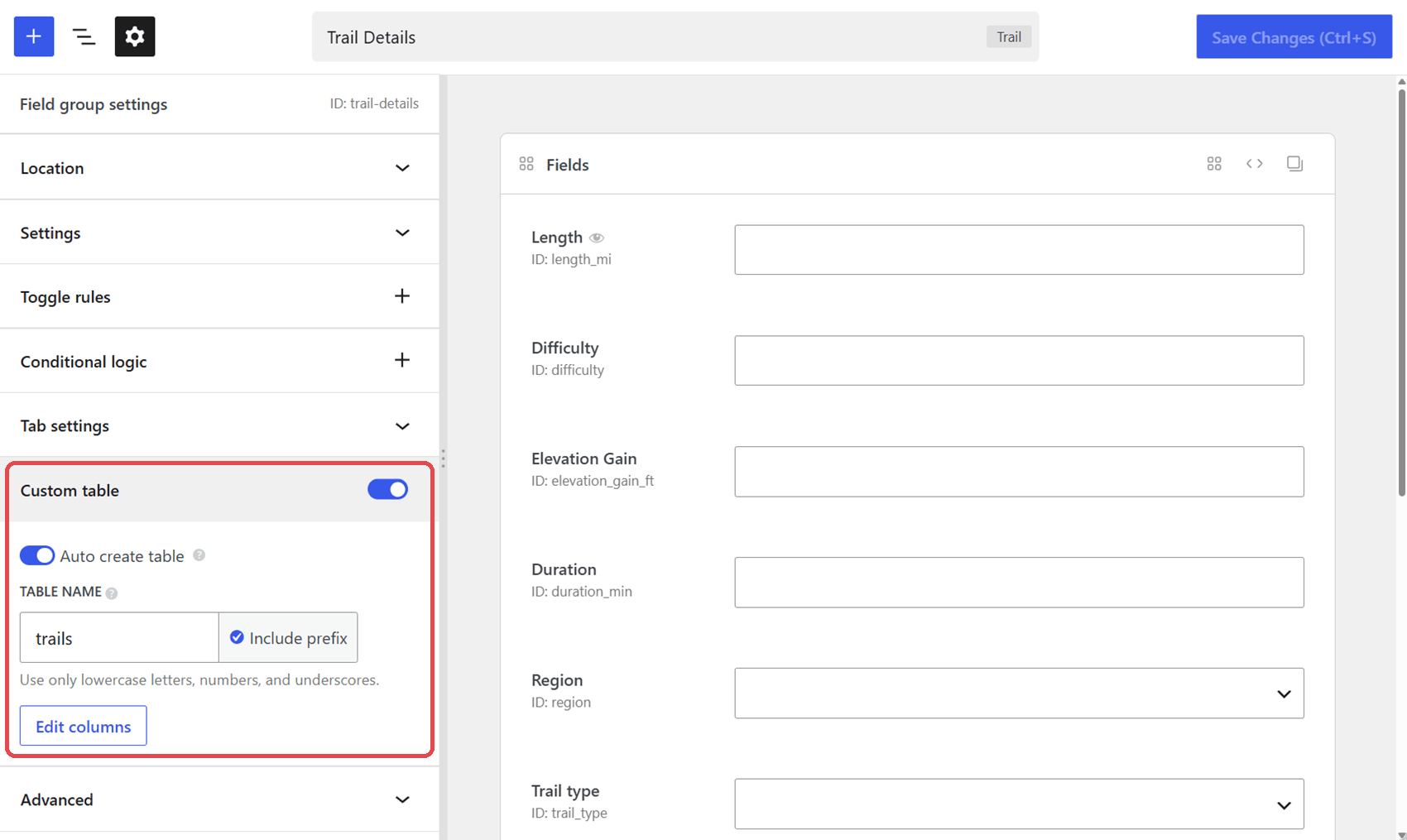
To store a field group in a custom table:
- Open the field group under Meta Box → Custom Fields.
- In the field group settings, turn on Custom table, then turn on Auto create table, so Meta Box creates the table with one column per field.
- Enter a Table name, such as
trails. With Include prefix ticked, WordPress adds its table prefix, so the table is created aswp_trailson a default install. - Click Edit columns to set each column's type and add an index to the fields you search by. The builder suggests a type for each field. A TEXT column can't be indexed, so give any field you search by another type, such as VARCHAR(255) for
region. If you save without opening this screen, every column is created as text. - Save the table schema, then save the field group. Meta Box creates or updates the table on that save.
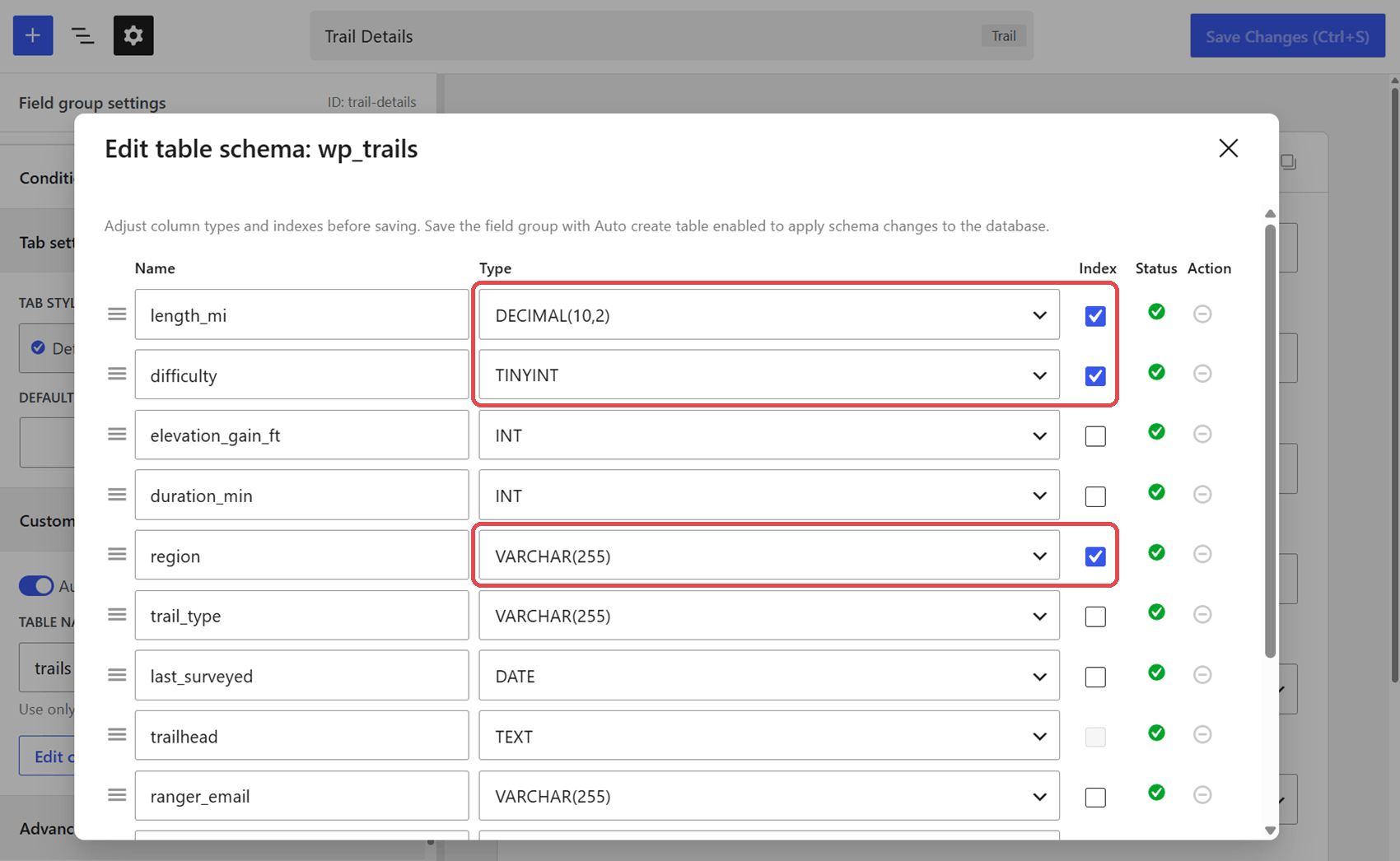
Edit columns, added in the release that brought custom models to MB Builder, also flags fields that no longer match their column.
Choose Custom Tables or Post Meta Based on Your Queries
Decide where to store each field group based on the queries you'll run against it. For fields you display on a single post, that's post meta, which everything else on the site can read. When searches or reports across many records need to be faster, a custom table is the better fit. Start by listing the searches and reports your site needs. For the trail directory in this guide, that list includes the search by region, difficulty, and length. The fields those searches use are the ones that benefit from a custom table, and the ones to index when you create it.
If that points to a custom table, the next steps are:
- Install MB Custom Table and follow the setup steps above, setting column types and indexes before the first save.
- Plan the custom queries. The query section of the MB Custom Table docs covers fetching post IDs from the table and passing them to WP_Query, as in the code sample above. Factor in development time for this part.
- Move existing data with the one-off script in Meta Box’s guide to moving custom fields to custom tables, after a database backup.
If it points to post meta, keep the fields where they are and revisit the decision when a search or report starts to slow down.
FAQs
What is a custom table in WordPress?
A custom table is a database table you create to hold the fields for one type of content, such as products or events. With Meta Box, it stores each post or record in a single row, with one column per field, instead of one row per field in wp_postmeta. Columns can have their own types and indexes, which can make searches across many records much faster.
Should I use custom database tables in WordPress for all my custom fields?
No. Post meta suits fields you display on one post, and it's what WordPress's standard queries and most plugins expect. Consider a custom table when you need faster searches or reports across many records. You'll also need to maintain the table's structure.
How do I optimize the WordPress database for custom fields?
Match database storage to how each field is used. Fields you only display can share one row as a group. Fields you search should stay separate. Large datasets you often search or report on usually suit a custom table. Anh Tran's guide to optimizing the database for custom fields walks through each approach.

 Get Posts by Custom Fields in WordPress - Part 2
 Introducing SearchWP - Meta Box Integration
 How to Use TablePress with Meta Box in Page Templates