
If your WordPress site has dozens of pages that share one layout, you've probably duplicated a page and swapped in the new details by hand. When a price changes, you have to find it in that page's text. When the design changes, you edit each page individually. Dynamic content in WordPress separates each page's details from the shared layout. You update the details in custom fields, while a single template change updates the design of every page that uses it.
This guide explains how WordPress builds a page from custom fields and a template, then compares three ways to connect them without editing PHP: Block Bindings, page builders, and MB Views. The examples come from a real estate site I built.

- 1. Dynamic Content at a Glance
- 2. What Is Dynamic Content in WordPress?
- 3. How WordPress Builds a Dynamic Page
- 4. Three Ways to Add Dynamic Content to WordPress Without Editing PHP
- 5. Which Method When: Quick Comparison
- 6. Dynamic Content Tutorials by Method
- 7. Pick a Method and Connect Your First Field
- 8. FAQs
Dynamic Content at a Glance
- The data: information stored with each post, like its title and featured image, plus custom fields for extra details such as a property's price or bedrooms.
- The template: the layout that decides where and how that data appears. Build it once, and it displays the right data for every post automatically.
- The connection: Block Bindings, a page builder, or MB Views links each field to a placeholder in the template.
What Is Dynamic Content in WordPress?
Every WordPress page is some mix of static and dynamic content. Static content is written directly into one page and stays the same until someone edits it, like the text on an About page or a welcome paragraph. Dynamic content is data that WordPress places into a layout each time the page loads.
You already use dynamic content, even if you've never called it that. A blog post's title, author, and publish date are all dynamic. Your theme's template has a placeholder for each one, and WordPress fills it in for every post. The dynamic content this guide covers is the same idea applied to your own data, like a property's price or an event's start date.
One note on the term. In email and marketing tools, "dynamic content" often means personalized content that changes depending on who's viewing it. That's a different topic. Here, it means content that comes from your site's stored data.
Going back to the real estate example, the listing pages for Tamarack Cottage and 418 Tolliver Street share the same layout. Only the data differs. One is a two-bedroom cottage at $389,900, and the other a three-bedroom townhouse at $364,900. Each of those details is stored in a custom field, as the next section explains.

How WordPress Builds a Dynamic Page
Dynamic content in WordPress comes from two things: data and a template.
The data is stored in the WordPress database, attached to each post. Some of it is built in, like the title, content, and featured image. On a site like this, properties would usually be their own custom post type, with a taxonomy for location. Anything else, like a price or bedroom count, goes into custom fields. If you're still deciding how to structure your data, the guide to custom post types vs taxonomies vs custom fields covers that step.
The template is the layout with placeholders in it, such as a heading for the property's name and a line for the price. It controls the shared layout, including any fixed labels or images, while each property supplies its own details.
When someone visits a property page, WordPress finds that property's data, loads the template, and fills each placeholder with the matching value. Change a property's price, and its page shows the new price the next time it loads. Redesign the template, and every property page using that template changes with it.

That split between the data and the template is why the setup is worth it. To update a price, an editor opens the property, finds the Price field, and types the new number, instead of hunting through paragraphs of text for the right line. Editors don't need to touch the layout, and even a site with 300 listings has only one template to maintain.
One thing trips people up, though. A custom field stores data, but it doesn't display anything on its own. Something has to connect each field to a placeholder in the template, and that's where the three methods below come in.
Three Ways to Add Dynamic Content to WordPress Without Editing PHP
Developers often connect fields to templates by editing theme files in PHP. The three methods below skip that. Block Bindings and page builders are point-and-click, while MB Views uses HTML templates with a little Twig for logic. All three work with fields created in the free Meta Box Lite, although MB Views itself needs a paid bundle. Beyond cost, the choice mostly comes down to how you already build pages.
The Block Editor with Block Bindings
Block Bindings is a WordPress core feature that connects a block's content to a data source, such as a custom field. Meta Box supports this feature and registers your fields as sources by default, so you can bind a Paragraph, Heading, Image, or Button block to a field, and the block shows that field's value on the front end.
Block Bindings needs WordPress 6.5 or later, and picking fields from the Attributes panel needs 6.9 or later.
For the property site, you'd bind Paragraph blocks to the Price, Bedrooms, and Address fields, then style them like any other block. The steps involved are:
- Open the property template (Single item:
Property) in the Site Editor and select a block. - Open Attributes in the sidebar and choose Content (the attribute a Paragraph block displays).
- Pick Meta Box Post Field as the source.
- Choose the field.
- Save the template. Each property page now shows its own value.
Bindings also work in post content and synced patterns, so you can use them outside templates too.
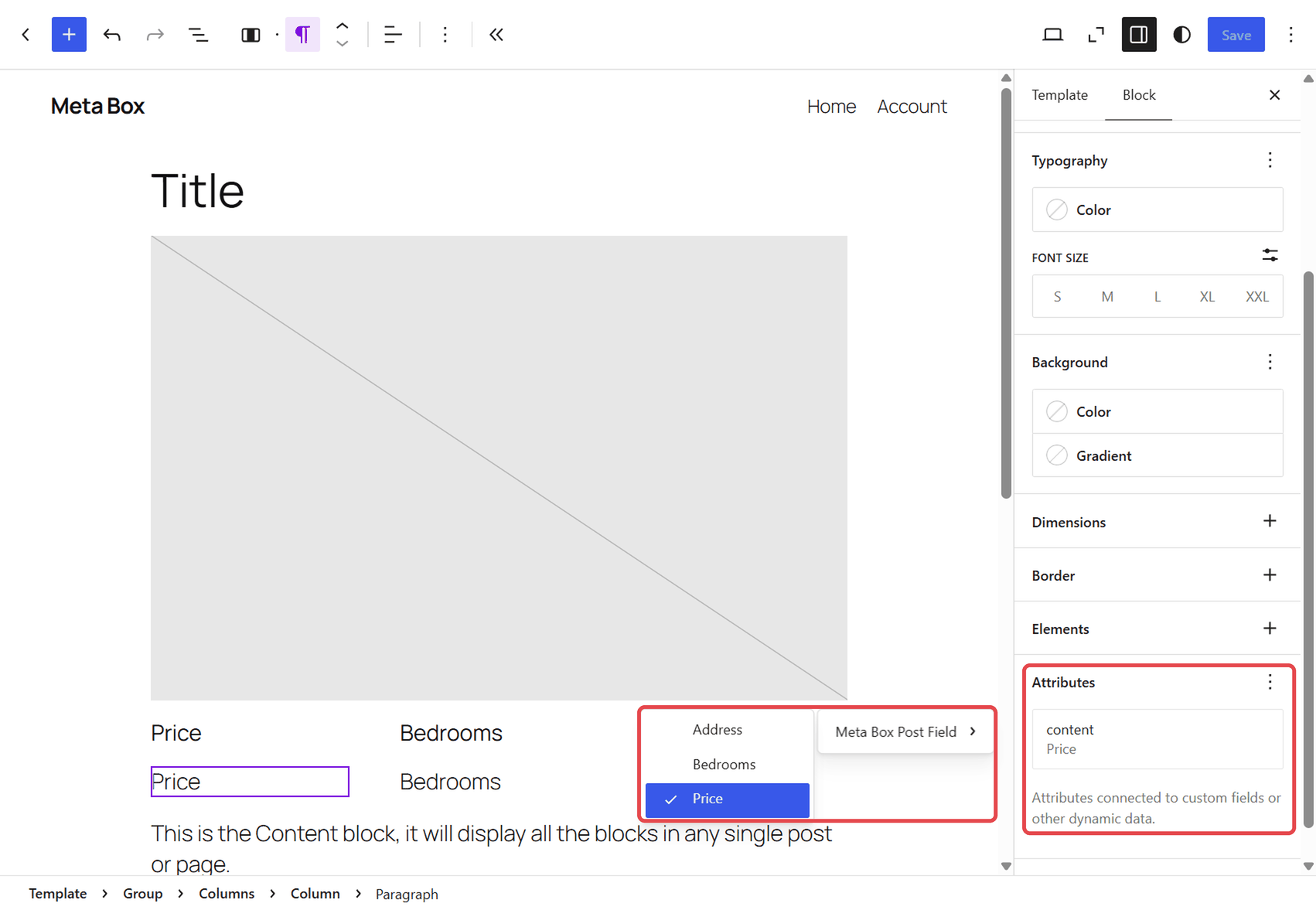
Block Bindings works best for showing one value per block. Repeating groups of data and more complex layouts suit the other two methods better.
Choose Block Bindings if you use a block theme or already build in the block editor.
Page Builders
Many page builders have a dynamic data feature. Elementor calls them dynamic tags, Divi calls it dynamic content, Beaver Themer (Beaver Builder's add-on) calls them field connections, and Bricks and Oxygen call it dynamic data. Either way, instead of typing text into an element, you pick a data source from a menu, and the element shows that value.
Bricks, Oxygen (3.9 or later), and Brizy support Meta Box fields out of the box. Elementor, Beaver Builder, and Divi connect through Meta Box integration extensions. On the builder side, dynamic data is sometimes a pro feature. Elementor's dynamic tags, for example, need Elementor Pro.
For the property site, you'd create a template for single properties in your builder, add a Text element or module, and set its source to the Price field. Assign the template to the property post type, and every listing uses it.
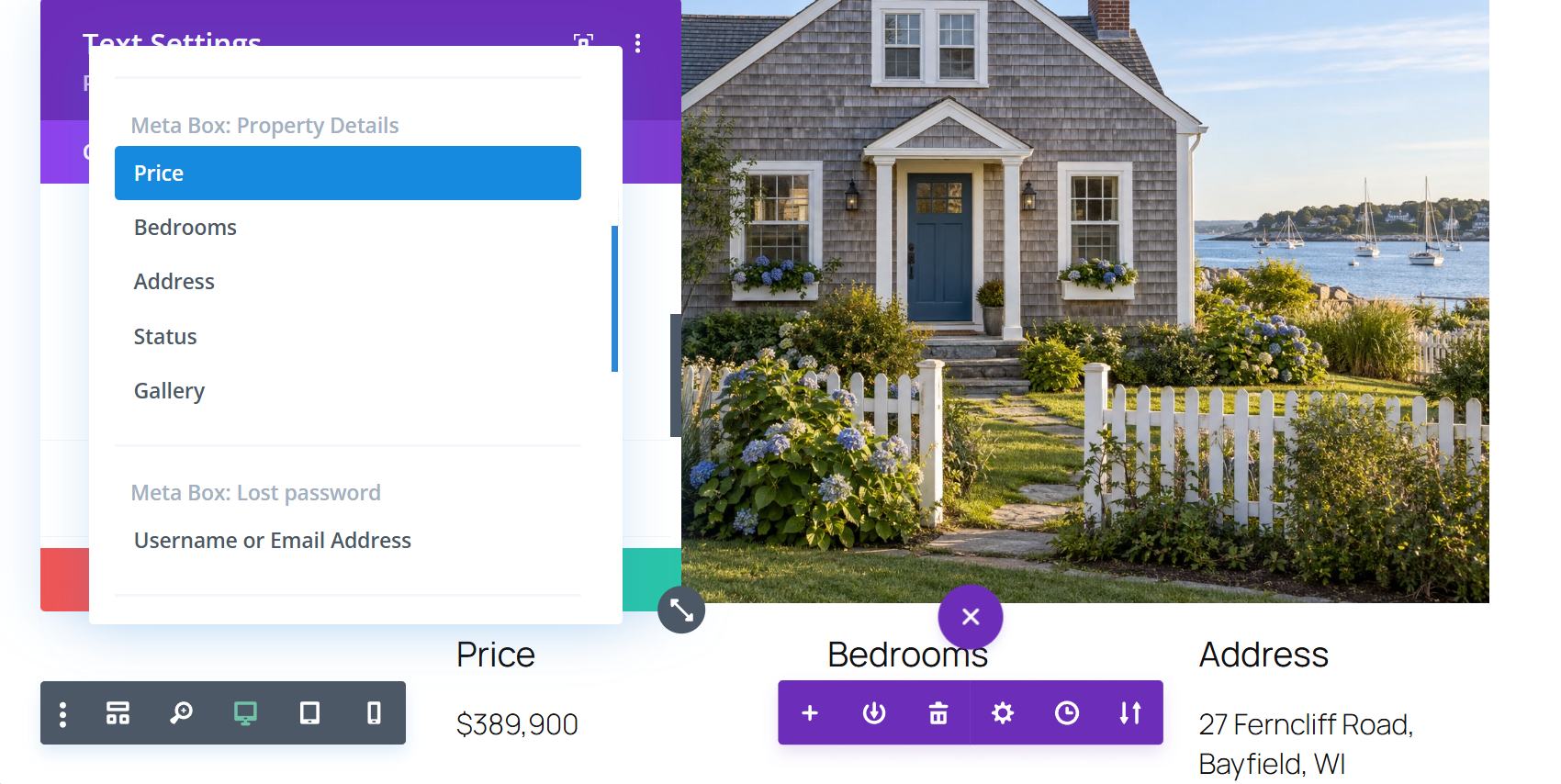
Choose a page builder's dynamic data feature if your site is already built with one.
MB Views
MB Views is Meta Box's own template builder, available with the Ultimate and Lifetime bundles. You create a view, choose where it appears in its Location settings (for example, every single property page), and insert fields from the Insert Field panel.
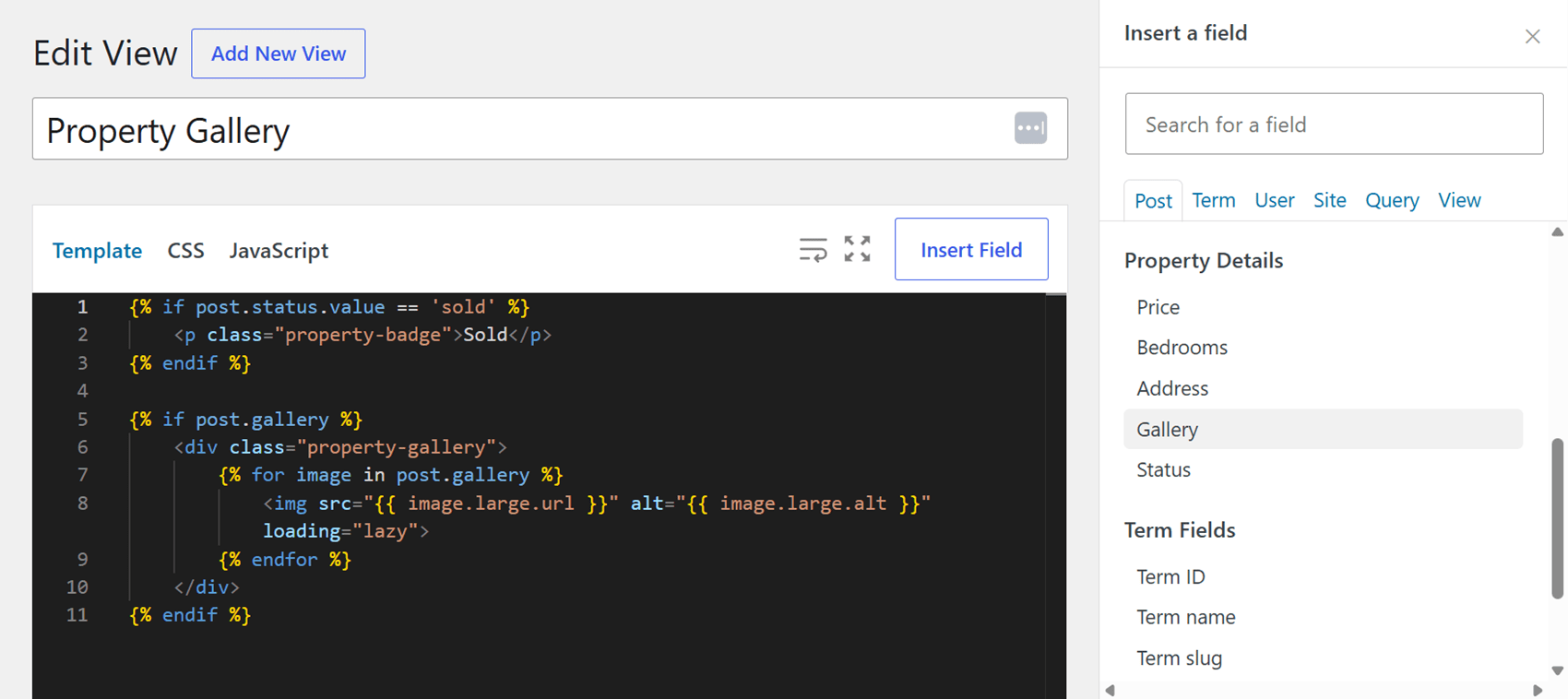
MB Views gives you direct control over the template. Views are written in HTML with Twig, a template language, so they can show a section only when a field has a value, loop through a repeating group, or format a number as a price. The Insert Field panel generates the code for each field, but layouts like the gallery and Sold badge below need some HTML and Twig.
For the property site, you could use MB Views for a photo gallery from the Gallery field, or a "Sold" badge that only appears when the Status field says so.

Choose MB Views if you're comfortable with some HTML and want full control over the layout, without a page builder.
Which Method When: Quick Comparison
The table below puts the three side by side. If you only want to know which one to choose, start with the "Best for" row.
| Method | Block Bindings | Page builders | MB Views | |
| Where you build | The block editor and Site Editor | The builder's own editor | Meta Box → Views | |
|
Block themes and single field values | Sites already built with a page builder | Direct control over template markup and logic | |
| How it works | Point and click | Point and click | HTML templates, generated field snippets, and Twig for logic | |
| Repeating fields and conditions | Limited | Varies by builder | Full support | |
| What you need | WordPress 6.9+ and Meta Box | A supported builder (sometimes its paid version) | The Ultimate or Lifetime bundle | |
| Cost | Free (WordPress plus Meta Box Lite) | Varies. Some builders need a paid version or add-on, but Meta Box's integrators are free. | Paid | |
| Property-site example | Price in a Paragraph block | Price in a text element | Photo gallery and "Sold" badge |
If you're still unsure, start from how you build pages today. Block editor users should try Block Bindings first, builder users should stay in their builder, and anyone who wants hands-on control of the markup can use MB Views. Mixing is fine, too. You can use a builder for the overall layout and MB Views for a single section.
Dynamic Content Tutorials by Method
Once you've picked a method, the Meta Box tutorial library has step-by-step builds for each one. Meta Box's Product Page series builds the same dynamic product page with ten different tools, so you can compare how each one works. It covers Elementor, Bricks, Oxygen, Breakdance, Divi, Kadence, Brizy, Zion, Gutenberg with MB Views, and without a builder.
Block Editor Tutorials
- Connect Meta Box fields to Gutenberg blocks with Block Bindings
- Build dynamic templates with Meta Box Block Bindings and custom fields
- Block bindings documentation
Page Builder Tutorials
- Creating a simple listing site with Bricks
- Creating filters for a real estate page with Bricks
- Showing upcoming events with Oxygen
MB Views Tutorials
- Creating a simple listing with MB Views
- Displaying images from cloneable fields with MB Views
- The MB Views Applications series
Pick a Method and Connect Your First Field
Using dynamic content in WordPress means a little setup up front in exchange for pages you can update without touching the layout. You update a single property by editing its fields, or change the layout of every property page by editing the template. To set it up, connect your fields and template with whichever method matches how you already work. From then on, adding a property means entering its details and letting the template handle the rest.
FAQs
What is dynamic content in WordPress?
It's content WordPress pulls from stored data, such as post details and custom fields, and places it into a template when a page loads. A product's price and a property's bedroom count are common examples. Change a value once, and the new value appears wherever you've connected that field.
What's the difference between static and dynamic content?
Static content is typed directly into one page and only changes when someone edits that page. Dynamic content is stored separately, in post details or custom fields, and a template places it on the page, so one layout can serve hundreds of pages.
What are examples of dynamic content on a WordPress site?
Anything WordPress fills in from stored data. Common examples include blog post titles and dates, product prices, event dates and venues, property details like price and bedrooms, and team member job titles. Lists built from that data are dynamic too, such as a grid of your latest posts or every property in one location.
How do I add dynamic content to WordPress without coding?
Create custom fields for your data with a plugin like Meta Box, then connect them to a template. Block Bindings and compatible page builders connect fields point-and-click, with no PHP or theme files involved. MB Views generates field snippets, but building its layouts involves HTML, with Twig for conditions and loops.
Do I need a page builder for dynamic content in WordPress?
No. The block editor already has blocks for built-in post data, like Title, Date, and Featured Image, so you can show those without a plugin. For your own data, such as a price, Block Bindings (built into WordPress since 6.5) connects core blocks like Paragraph, Heading, and Image to custom fields. The free Meta Box Lite plugin lets you create those fields visually and makes them available to Block Bindings without writing code.

 How to Create a Custom 404 Page in WordPress - P5 - Using Meta Box and Oxygen
  How to Create a Custom 404 Page in WordPress - P4 - Using Meta Box and Breakdance
  How to Create a Custom 404 Page - P3 - Using MB Views