
When your data doesn't fit the post, post type, or other standard WordPress content models - such as transactions, bookings, payments, or activity logs - a custom model lets you store and manage it in its own database structure (custom table).
Previously, you could only create a new model with PHP. This meant the workflow was separate from MB Builder, where you can already create custom post types, taxonomies, and settings pages.
But now, you can create custom models in MB Builder, configure their database table, and attach fields in the same workflow you already use. You can also edit table columns directly from the field group settings UI. This works with any custom table, not just custom models.
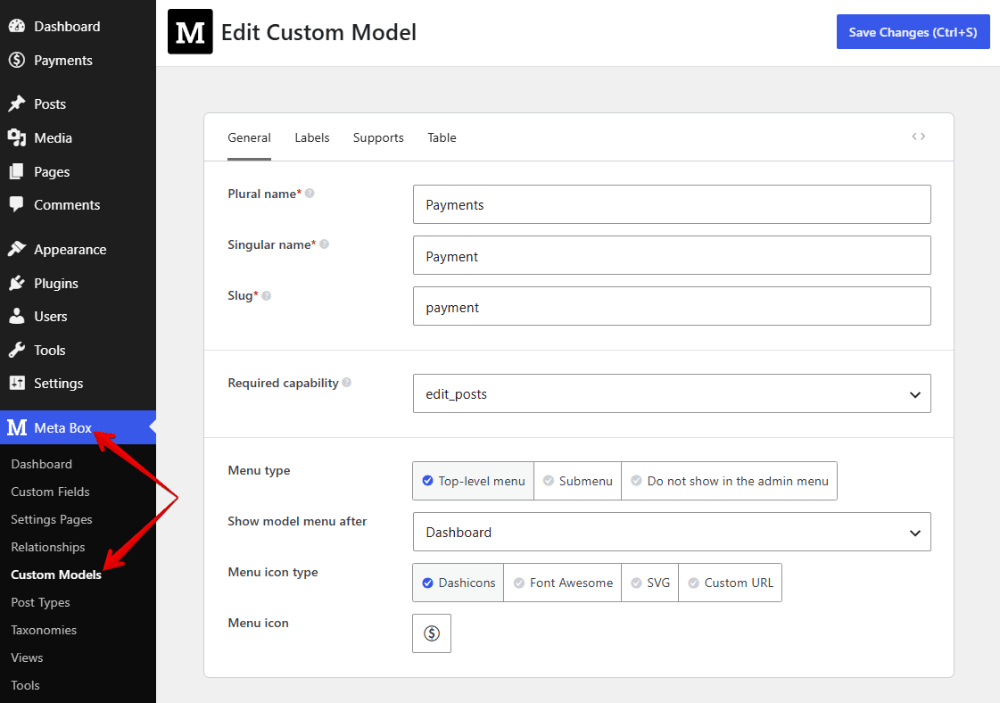
Creating Custom Models Using MB Builder
Go to Meta Box > Custom Models > Add New. The screen is close to the one you use for a CPT, taxonomy, or settings page.
Besides the common settings and tabs, you can also configure the custom table for this model in the Table tab:
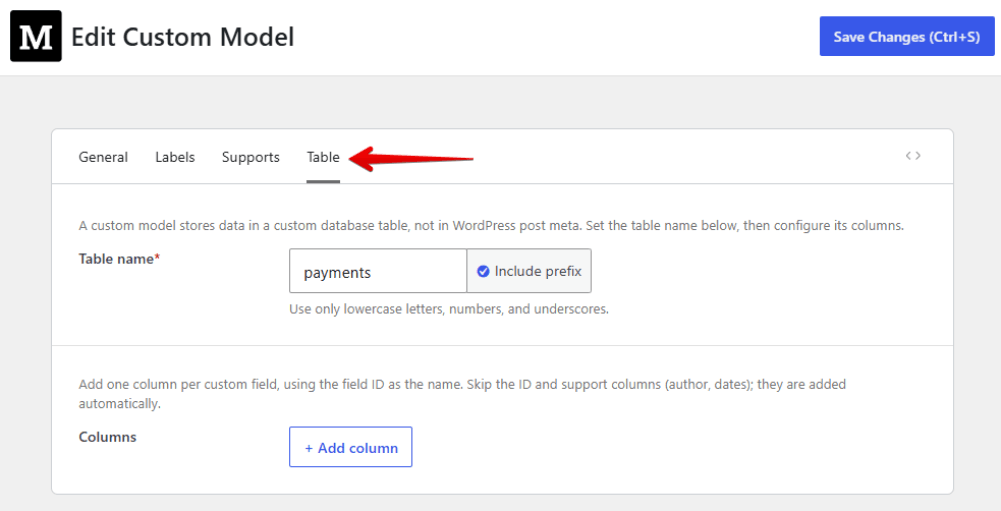
Configure Model's Database Table & Columns
Different types of data should be stored differently. This is a basic need for structured data and a common requirement for developers. For instance, in the case of the created model, I wanted each field to use an appropriate column type:
| Field | Column Type | |
amount |
INT |
|
transaction_id |
VARCHAR(255) |
In code, you could already pass this into API::create(). But in the builder, you could not. And the Edit column is the screen that closes that gap.
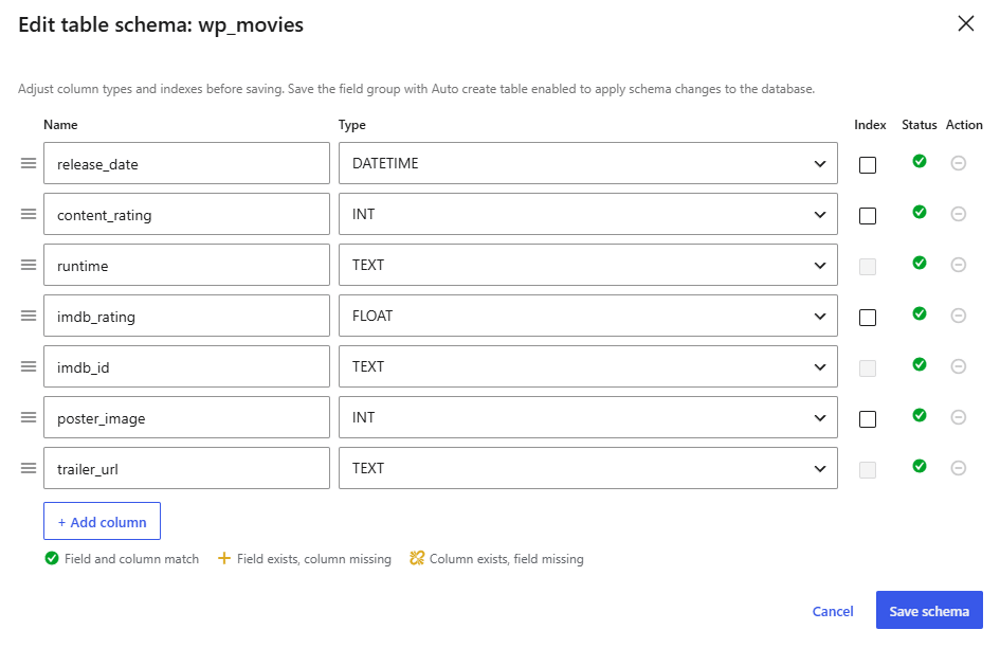
To configure the model table, click on Add column, then fill in the column_name and select the type as you want:
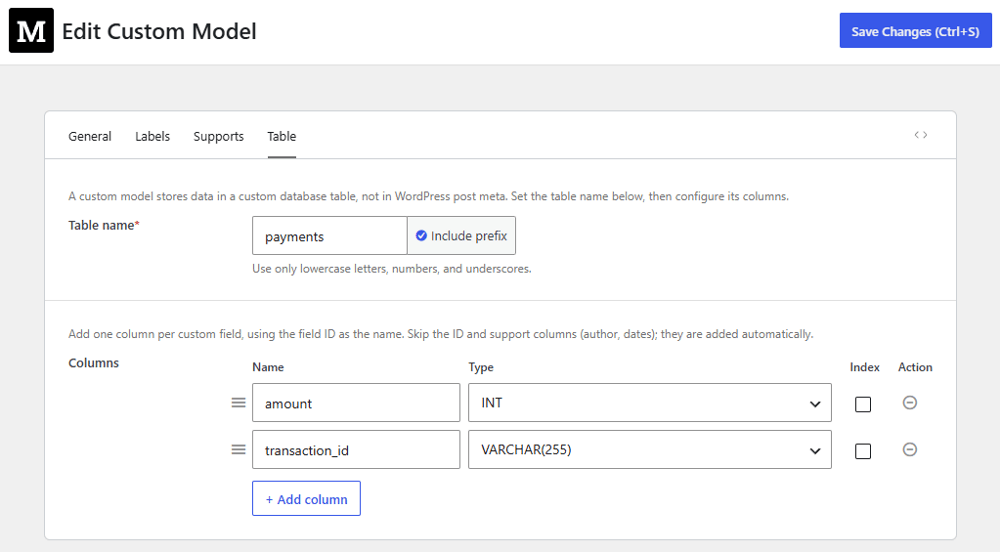
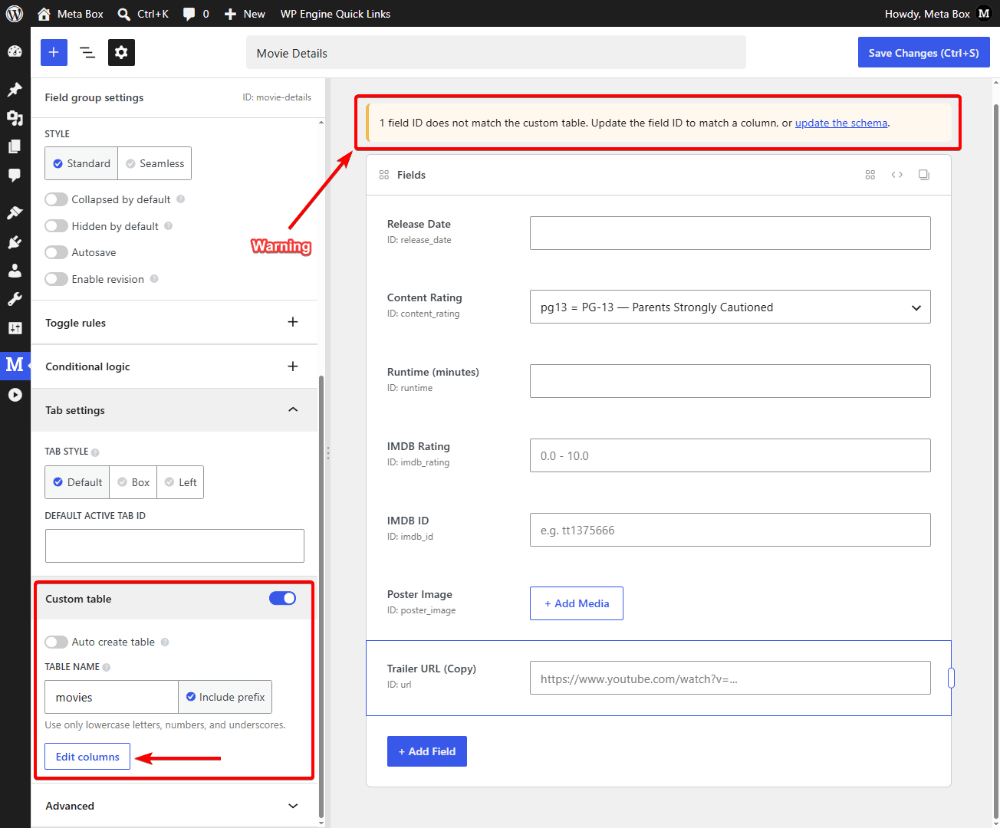
When you attach a field group to the model, you can also customize its columns directly from the field group settings.
If a field does not match the corresponding database column, Meta Box shows a notice so you can check the mismatch and update the table:
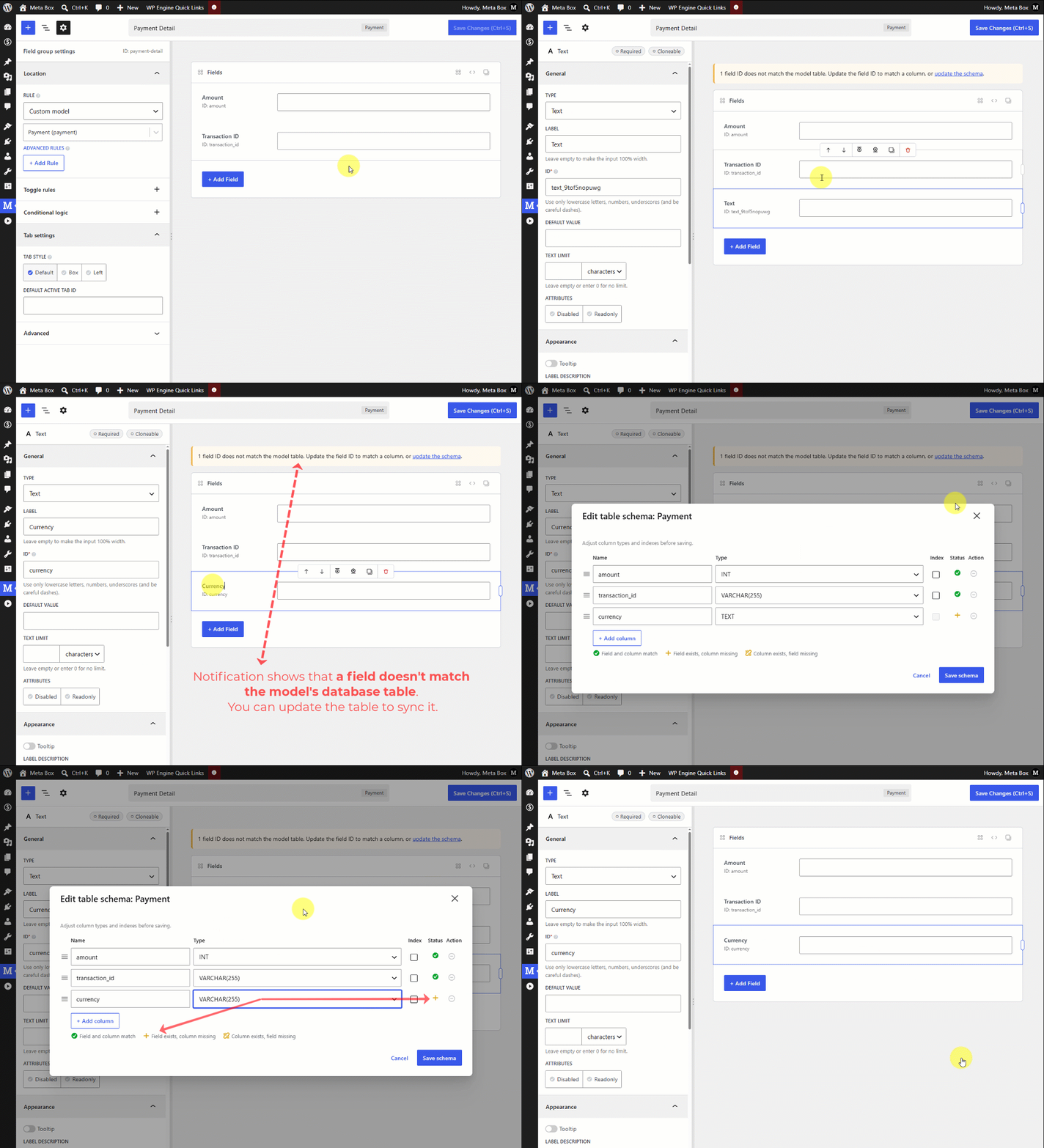
After saving, the table in the database matches the schema you configured:
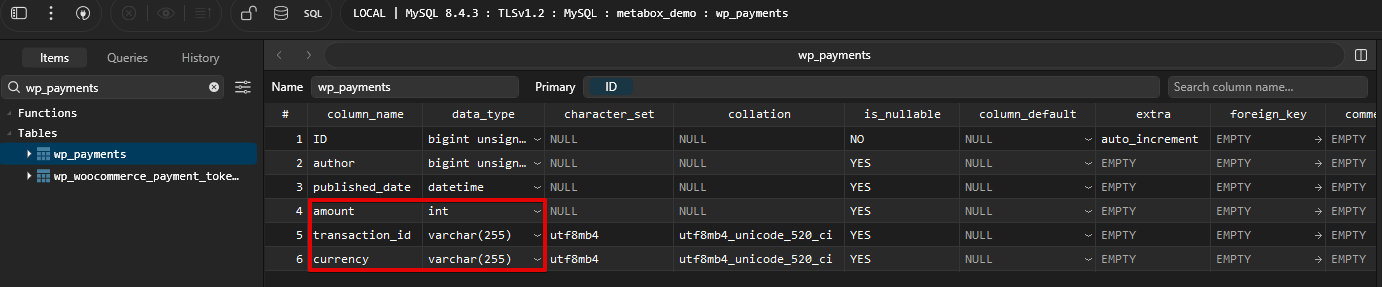
With this update, you do not need a separate workflow for models. Create the model, configure the data table, and attach fields - all can be done in MB Builder.
Edit Custom Table Columns for Any Field Group
This is not limited to models. Any field group that uses a custom table can edit columns the same way.
Open the field group that uses a custom table. In Custom Table settings, click Edit columns.
The Edit Table Schema pop-up opens. Just change each column, set an index if you need one, and add columns. The screen also shows whether each field still matches its column.
Meta Box will apply the change to the database, and this is the custom table we have:
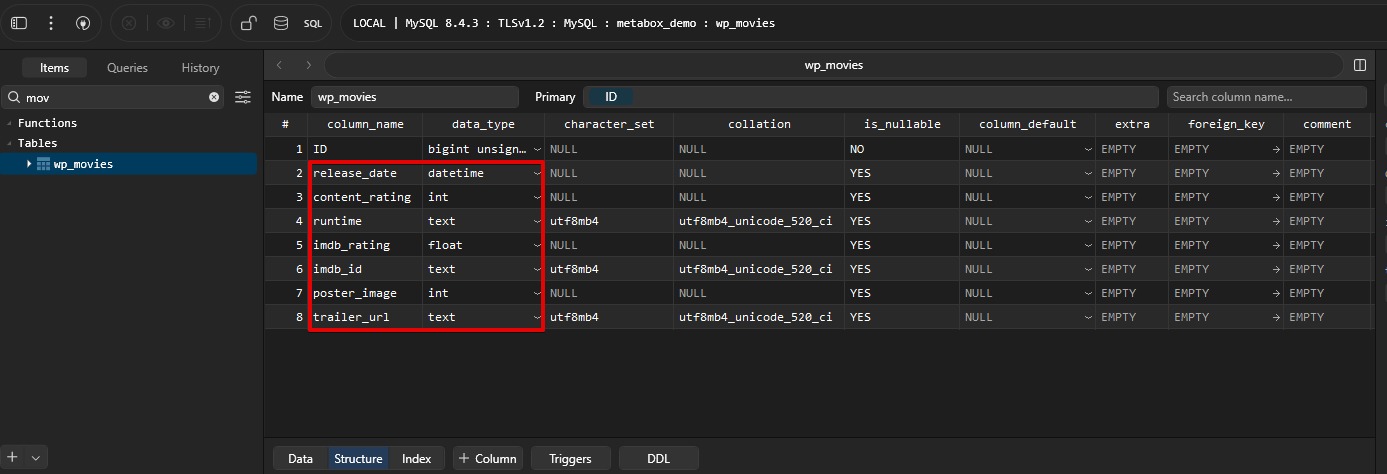
Everything happens through the UI, while still giving you nearly the same level of control as defining the schema yourself. You do not write an ALTER TABLE statement yourself. If the table already has rows, check that existing values fit the new column before you save.
Final Thoughts
You can now create a custom model directly in Builder, set its table, and attach fields without setting up the model separately in PHP.
Another powerful feature: Edit Columns is a shared tool. It works for models and any custom table. Builder tables no longer have to stay as they were auto-created.
Together, these improvements make MB Builder more useful for projects that need a well-defined database structure - without requiring you to manage every schema change manually.
Update and explore these features right now. And don’t forget to share your thoughts with us.

 What’s New in Meta Box AIO 3.3.0: Powerful Updates for Models, Columns, and Views
  MB Builder 5.0.0: Official Release for Meta Box AIO - Fresh UI & Smarter Workflow
  How To Analyze Content in Custom Fields for SEO - Using Yoast SEO and Meta Box
Amazing new feature! Thanks for the great work folks. =]
Everything I’ve ever wished for is arriving as a new feature. You’re amazing, Meta Box!
MetaBox + WP = World's best CMS. Thank you for all you do to make developers happy!