
An update breaks something on your site, and you need the previous version back now. Until now, you had to open a support ticket and wait for us to send you a zip file. Not anymore.
You can now download older versions and beta versions of Meta Box AIO and all premium extensions from your account on metabox.io. Here's how it works, how to roll back safely, and how to try new features before they're released.
Download Older Versions
Go to My Account » Downloads. Next to each Download button, there is a new Other versions menu. Click it to see the recent versions of the plugin, and click Download next to the version you need:
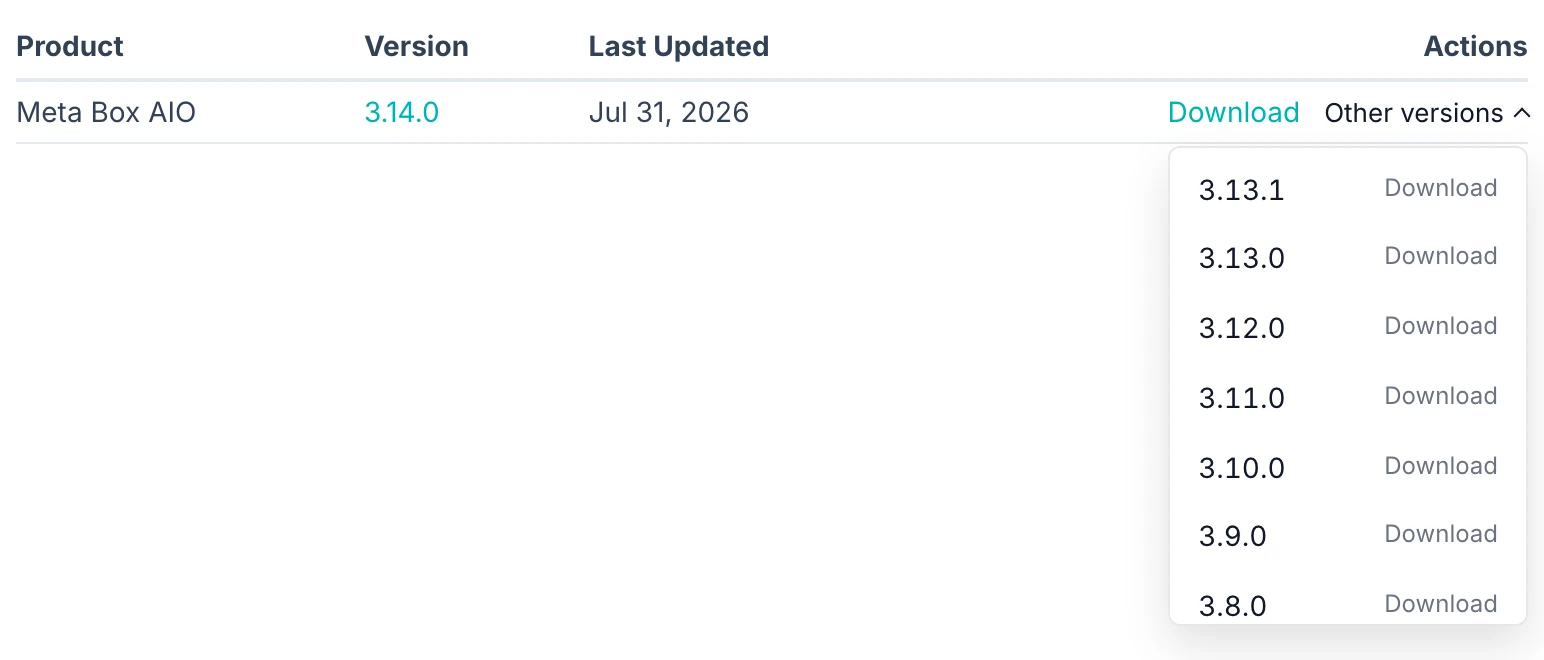
What you get:
- The 10 most recent versions of each plugin.
- Older versions of Meta Box AIO and of each extension, if you use them separately.
- The same zip files we released, so they work the same as they did when you first installed them.
To download, you need an active license. If your license is expired, renew it first.
How to Roll Back to an Older Version
Before you start, back up your site. If you can, test the older version on a staging site first.
- Go to My Account » Downloads and download the version you need from Other versions.
- In your WordPress admin, go to Plugins » Add New Plugin and click Upload Plugin.
- Select the zip file and click Install Now.
- WordPress sees that the plugin is already installed. Click Replace current with uploaded.
WordPress replaces the plugin files and keeps the plugin active. Your field groups, custom fields, and data stay in the database, so you don't lose anything.
After the rollback, WordPress shows the update notice again. Don't update until we release a fix. You can follow the changelog on the Downloads page: click the version number next to each plugin.
When to Roll Back
- An update breaks your site or a feature you depend on. Roll back to keep the site working, then tell us about the bug so we can fix it.
- A new version needs a newer PHP version than your server has. Use the previous version until you can upgrade PHP.
- You want to compare behavior between two versions to find out which update caused a problem.
Rolling back is a short-term fix. Older versions don't get security fixes, so update to the latest version as soon as the issue is fixed.
Try Beta Versions Before the Official Release
When we have a beta version of a plugin, you'll see a notice at the top of the Downloads page with a link to download it. Betas are also in the Other versions menu, with a Beta label.
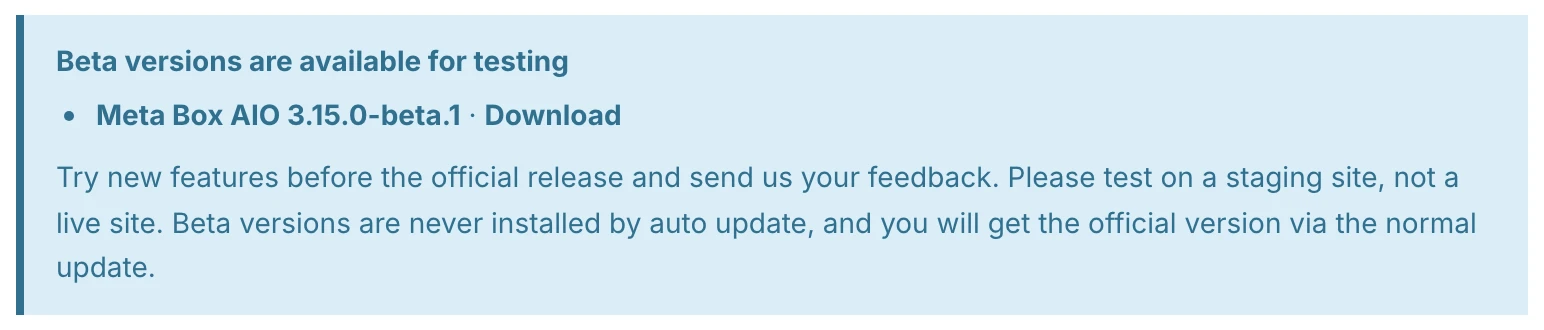
Beta versions let you try new features early and tell us what you think before the official release. Your feedback helps us find bugs and change the feature while it's still easy to change.
What to know about betas:
- Install betas on a staging site, not a live site. Betas are for testing.
- Betas never install by auto update. You install a beta only when you download and upload it yourself.
- You get the official version through the normal update. When we release the official version, WordPress shows the update as usual.
- The menu shows only betas that are newer than the current version. When the official version is out, the old beta disappears from the menu.
You install a beta the same way as an older version: upload the zip file and click Replace current with uploaded.
Why We Added This
Some of you told us that you can't always trust an update. When an update broke a site, the only way back was a backup or a support ticket. A rollback should take a minute, not a day.
Betas solve the other half of the problem. Before, we shared betas on GitHub, as we did for the MB Builder 5.0.0 Beta. Now betas are in the same place as your regular downloads, so it's easier to test them and send feedback before a release.
Frequently Asked Questions
Can I use WP Rollback with Meta Box AIO?
No. WP Rollback works only with plugins from WordPress.org. Meta Box AIO and the premium extensions are not on WordPress.org, so download older versions from your account instead. The free Meta Box plugin is on WordPress.org, so you can get its older versions from the Advanced View of the Meta Box plugin page.
Will I lose my data if I install an older version?
No. Meta Box saves field groups and field values in the database, not in the plugin files. Replacing the plugin files doesn't change the database. Still, back up your site before you change plugin versions.
How many older versions can I download?
The 10 most recent versions of each plugin.
Can I download older versions with an expired license?
No. You need an active license. Renew your license in My Account to get access again.
Will WordPress update my site to a beta version?
No. Betas never install by auto update. You install a beta only when you upload it yourself.
Final Thoughts
Go to My Account » Downloads to see the older versions and betas of your plugins. If an update causes a problem, roll back, and let us know in the support forum so we can fix it fast.
If you don't have a license yet, Meta Box AIO includes all premium extensions, updates, and access to older and beta versions.

 Meta Box AIO Now Includes Meta Box - One Plugin, Full Power!
 Meta Box Updates: Better Performance, Advanced Tutorials and More Features