
When managing posts in WordPress, you may need to find specific posts based on numeric custom field values, such as duration, price, or size. However, WordPress doesn't provide a built-in way to filter posts by these values in the admin area.
In this tutorial, I'll show you how to add a numeric range filter to the WordPress admin, making it easier to find the posts you need.
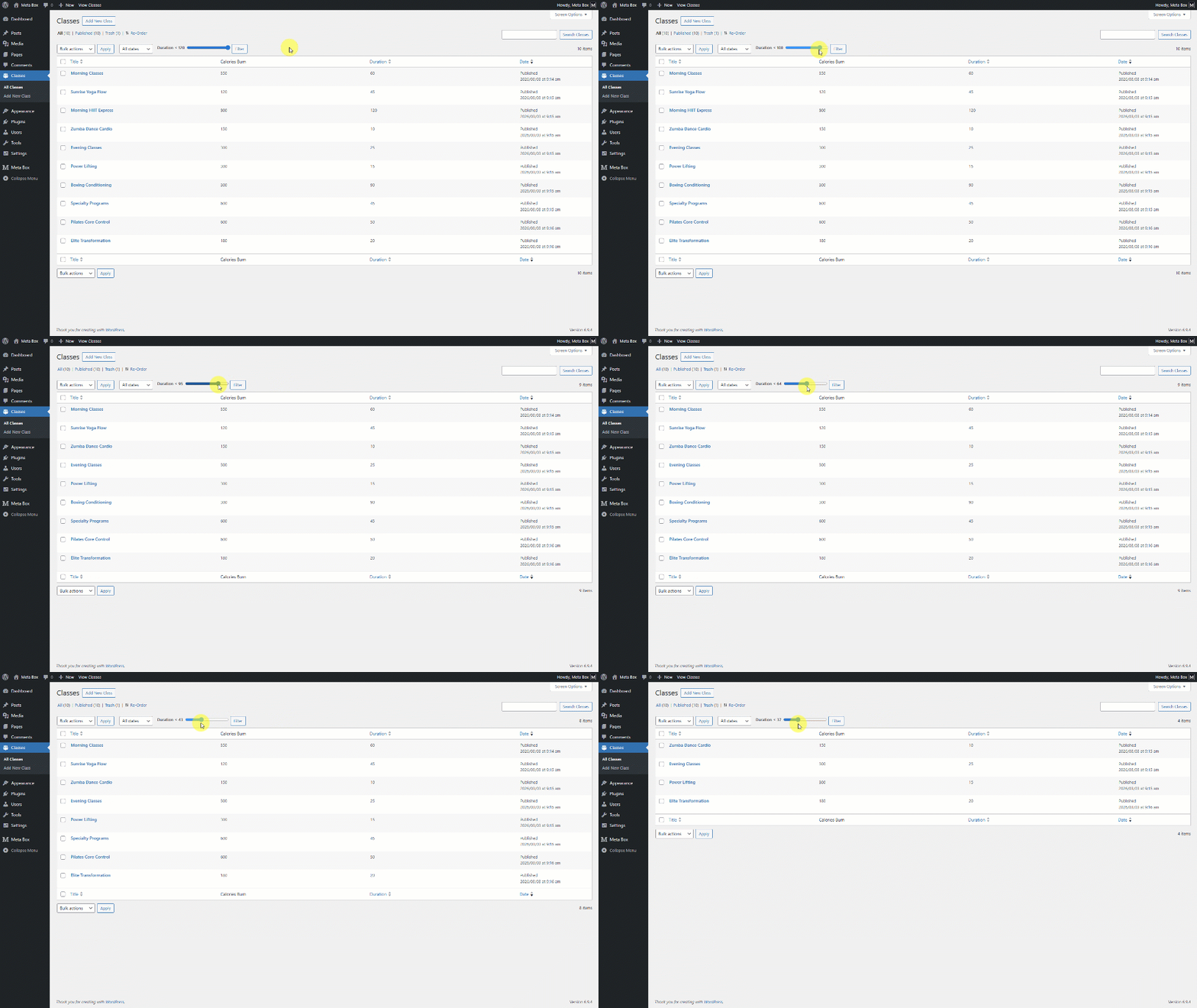
For example, here I’m managing a list of classes with the length of the lesson. Instead of scanning the list manually, you can just click and slide the dot on the range bar to choose the value range you want to search for.
Let’s see how to do that.
Video Version

Before Getting Started
For this tutorial, we recommend using Meta Box AIO to have the framework and all extensions to have all Meta Box features.
- MB Admin Column: display custom field values in the admin post list;
- MB Custom Post Types: create a Classes post type;
- MB Builder: create custom fields to store the class information.
Step 1. Create a Custom Post Type & Custom Fields
I prepared the Classes post type to manage all the classes. And also have a field group to store class details.
These are some fields as an example. You can add any fields you want depending on your project. In there, we have two fields: Duration and Calories Burn.
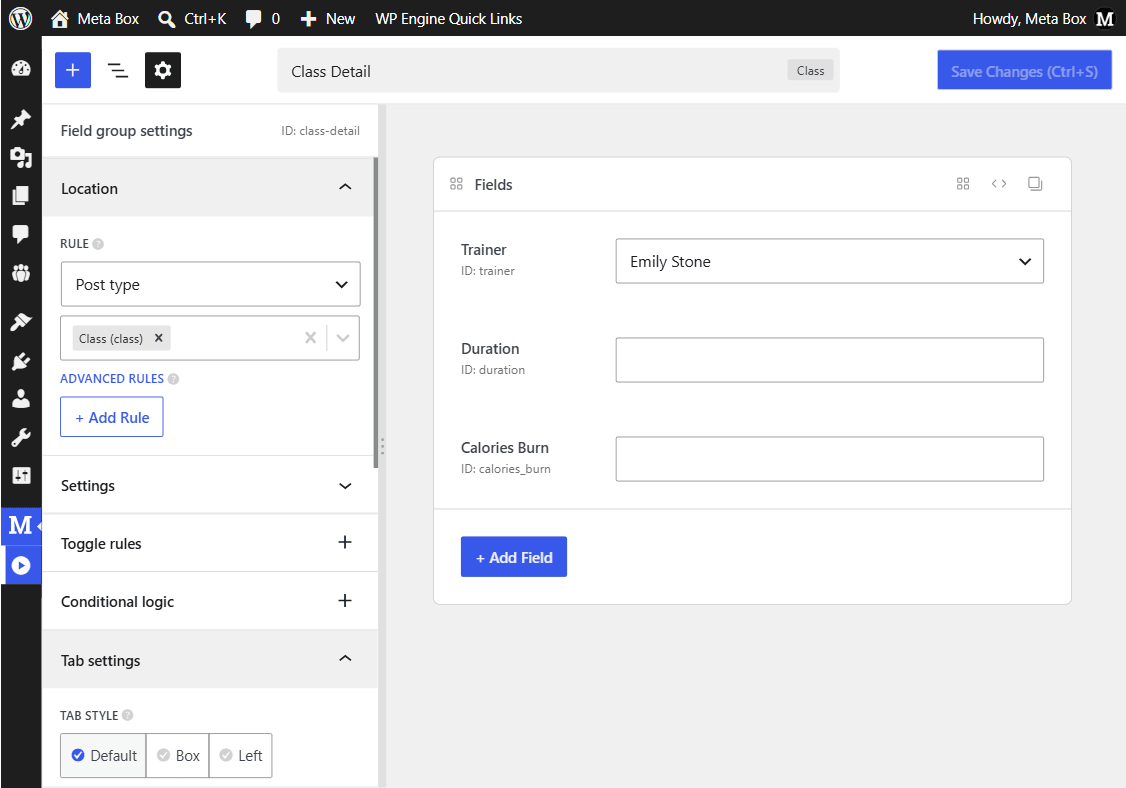
Custom fields can store numeric values in different ways, whether they're configured as Text or Number fields. As long as the values are numeric, you can use them to filter posts. In this example, we'll use the Duration and Calories Burn fields to filter classes by a specific duration range or the number of calories burned. Later, we’ll create a filter to find classes based on a specific duration range or even based on the calories burned.
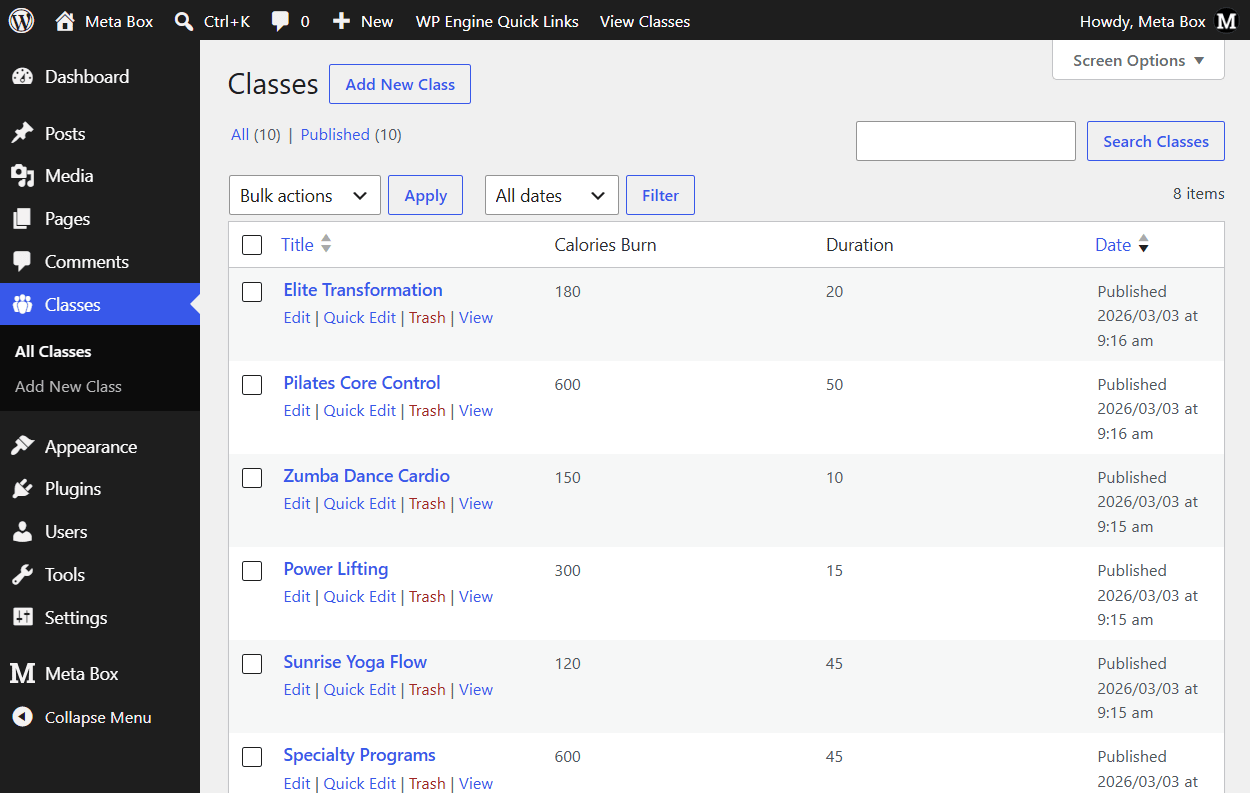
Now, in the post editor, you can enter class information along with the values for these fields. These are some classes I’ve created, with Duration and Calories Burn displayed in the admin columns because I have already turned on the Show admin column section when creating fields.
Step 2. Create the Range Filter in the Admin
As mentioned earlier, the goal here is to filter posts based on numeric custom field values with a range.
Now, we’ll add some code to the theme file editor to implement this filtering feature in the admin screen.
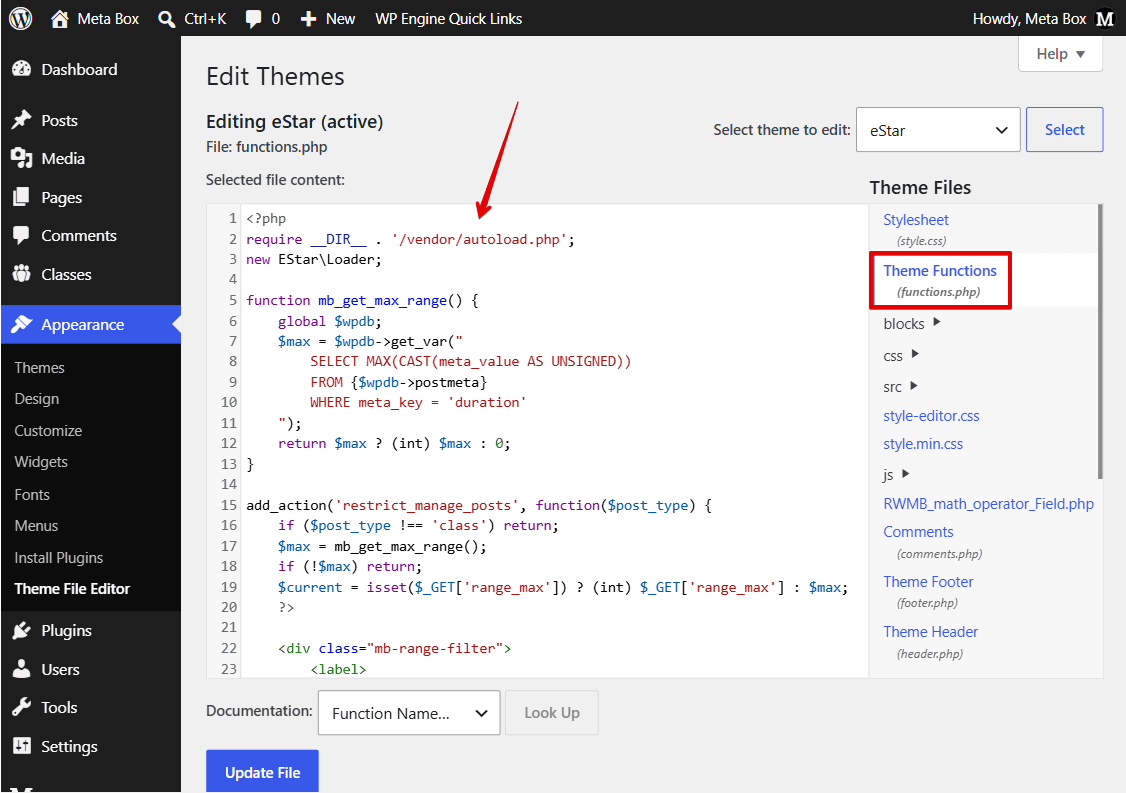
function mb_get_max_range() {
    global $wpdb;
    $max = $wpdb->get_var("
        SELECT MAX(CAST(meta_value AS UNSIGNED))
        FROM {$wpdb->postmeta}
        WHERE meta_key = 'duration'
    ");
    return $max ? (int) $max : 0;
}

add_action('restrict_manage_posts', function($post_type) {
if ($post_type !== 'class') return;
    $max = mb_get_max_range();
    if (!$max) return;
    $current = isset($_GET['range_max']) ? (int) $_GET['range_max'] : $max;
    ?>

<div class="mb-range-filter">
        <label>
            Duration ≤ <strong><span id="range-value"><?php echo $current; ?></span></strong>
        </label>
        <input
            type="range"
            id="range-slider"
            min="0"
            max="<?php echo $max; ?>"
            value="<?php echo $current; ?>"
        >
        <input type="hidden" name="range_max" value="<?php echo $current; ?>">
    </div>
<?php
});

add_action('admin_head', function() {
    $screen = get_current_screen();
    if ($screen->post_type !== 'class') return;
?>
<style>
.mb-range-filter {
    display: inline-flex;
    align-items: center;
    gap: 6px;
    margin-left: 8px;
    vertical-align: middle;
}

.mb-range-filter label {
    margin: 0;
    font-weight: 500;
}

#range-slider {
    width: 140px;
}
</style>
<?php
});

add_action('admin_footer-edit.php', function() {
    $screen = get_current_screen();
    if ($screen->post_type !== 'class') return;
?>
<script>
document.addEventListener('DOMContentLoaded', function() {
    const slider = document.getElementById('range-slider');
    if (!slider) return;

    const display = document.getElementById('range-value');
    const hidden  = document.querySelector('[name="range_max"]');
    const form    = slider.closest('form');

    let timer;

    slider.addEventListener('input', () => {
        display.textContent = slider.value;
        hidden.value = slider.value;


        clearTimeout(timer);
        timer = setTimeout(() => form.submit(), 300);
    });
});
</script>
<?php
});

add_action('pre_get_posts', function($q) {
    if (!is_admin() || !$q->is_main_query()) return;
    if ($q->get('post_type') !== 'class') return;
    if (!isset($_GET['range_max'])) return;

    $max = (int) $_GET['range_max'];
    $q->set('meta_query', [[
        'key'     => 'duration',
        'value'   => [0, $max],
        'compare' => 'BETWEEN',
        'type'    => 'NUMERIC'
    ]]);
});
In there:
First, we create a mb_get_max_range() function to get the maximum numeric value of the duration custom field from the database. It uses the $wpdb object to run a direct query on the postmeta table and retrieve the highest value stored for the Duration field.
$max = $wpdb->get_var("
    SELECT MAX(CAST(meta_value AS UNSIGNED))
    FROM {$wpdb->postmeta}
    WHERE meta_key = 'duration'
");
You can replace duration with the ID of any other numeric custom field you want to use, and the same logic will work for that field as well.
return $max ? (int) $max : 0;
This line returns the maximum value as an integer. If no value exists, it returns 0, so the result is always a number.
add_action('restrict_manage_posts', function($post_type) {
This hook adds a custom filter UI to the admin post list screen in WordPress.
if ($post_type !== 'class') return;
This ensures the filter only appears on the “class” post type and not on other post types.
$max = mb_get_max_range();
This line is to get the maximum value from the database to define the upper limit of the filter.
<div class="mb-range-filter">
    <label>
        Duration ≤ <strong><span id="range-value"><?php echo $current; ?></span></strong>
    </label>
    <input
        type="range"
        id="range-slider"
        min="0"
        max="<?php echo $max; ?>"
        value="<?php echo $current; ?>"
    >
    <input type="hidden" name="range_max" value="<?php echo $current; ?>">
</div>
This part creates an HTML range input where the minimum value is set to 0, the maximum value is dynamically retrieved from the highest value of the custom field, and the current value is set based on the selected filter value.
The hidden input stores the selected value so it can be submitted along with the WordPress admin filter form.
add_action('admin_head', function() {
    $screen = get_current_screen();
    if ($screen->post_type !== 'class') return;
?>
This code hooks into admin_head to check the current admin screen. If the post type is not class, the callback stops running. Otherwise, the following CSS is added to style the custom range filter.
The following CSS styles the custom range filter, aligning the label and slider horizontally, adding spacing between them, and setting the slider width.
<style>
.mb-range-filter {
    display: inline-flex;
    align-items: center;
    gap: 6px;
    margin-left: 8px;
    vertical-align: middle;
}

.mb-range-filter label {
    margin: 0;
    font-weight: 500;
}

#range-slider {
    width: 140px;
}
</style>
This hook adds JavaScript to the footer of the admin post list screen (edit.php). It also checks the current post type to ensure the script only runs on the class post type screen.
add_action('admin_footer-edit.php', function() {
    $screen = get_current_screen();
    if ($screen->post_type !== 'class') return;
?>
The following JavaScript controls the range filter. When the slider value changes, it updates the displayed value and stores the selected value in the hidden input.
It then uses clearTimeout() and setTimeout() to delay form submission until 300 milliseconds after the last slider change. This prevents the form from being submitted repeatedly while the user is dragging the slider.
<script>
document.addEventListener('DOMContentLoaded', function() {
    const slider = document.getElementById('range-slider');
    if (!slider) return;

    const display = document.getElementById('range-value');
    const hidden  = document.querySelector('[name="range_max"]');
    const form    = slider.closest('form');

    let timer;

    slider.addEventListener('input', () => {
        display.textContent = slider.value;
        hidden.value = slider.value;

        clearTimeout(timer);
        timer = setTimeout(() => form.submit(), 300);
    });
});
</script>
We create another hook that runs before posts are loaded. It checks the admin main query for the class post type and stops if the selected range value is not set.
add_action('pre_get_posts', function($q) {
    if (!is_admin() || !$q->is_main_query()) return;
    if ($q->get('post_type') !== 'class') return;
    if (!isset($_GET['range_max'])) return;
Finally, we get the field value from the URL, convert it to a number, and modify the query to filter posts where the duration is between 0 and that value.
  $q->set('meta_query', [[
        'key'     => 'duration',
        'value'   => [0, $max],
        'compare' => 'BETWEEN',
        'type'    => 'NUMERIC'
    ]]);
That’s all for the code. I’ve already uploaded it to GitHub for your reference.
Now, in the backend, at the top of the posts for the specific post type we selected - Classes, there is a filter bar based on a custom field, currently it’s using “duration.”
You can see it works very smoothly when I click and move the range bar.
If you want to change this filter to another custom field instead, for example, let’s switch it to “calories burn”, go back into the Theme File Editor and update the meta key, basically replacing the old custom field key with the new one for calories burned.
Last Words
That's how you can filter posts by numeric custom field values using a range slider in the WordPress admin. If you also need to filter posts by categories or other taxonomy terms, check out our previous tutorial on filtering posts by taxonomy terms in the admin area!
- Advanced Map Listings
- Author Bio
- Better 404 Page
- Blogs for Developers
- Building a Simple Listing Website with Filters
- Building an Event Website
- Building Forms with MB Frontend Submission
- Coding
- Create a Chronological Timeline
- Custom Fields Fundamentals
- Design Patterns
- Displaying Posts with Filters
- Download and Preview Buttons
- Dynamic Banners
- Dynamic Landing Page
- FAQs Page
- Featured Products
- Filter Posts by Relationships
- Filter Posts by Taxonomy
- Full Site Editing
- Google Fonts
- Gutenberg
- Hotel Booking
- Latest Products
- Logo Carousel
- MB Builder Applications
- MB Group Applications
- MB Views Applications
- Most Viewed Posts
- Opening Hours
- OTA Website
- Pricing Table Page
- Product Page
- Product Variations
- Querying and Showing Posts by Custom Fields
- Recipe
- Related Posts via Relationship
- Restaurant Menus
- SEO Analysis
- Simple LMS
- Speed Up Website
- Taxonomy Thumbnails
- Team Members
- User Profile
- Video Gallery

 How to Filter Posts by Taxonomy in the Admin Dashboard
 How to Filter Posts by Custom Fields and Custom Taxonomies on Archive Pages
 Get Posts by Custom Fields in WordPress - Part 1