
Meta Box AIO 3.14 brings three features that many of you asked for:
- Preview views in the editor before you save them (MB Views 1.17).
- Remove the post type slug from URLs, so a book can live at
/the-hobbit/instead of/book/the-hobbit/(MB Custom Post Types 2.13). - Limit login attempts and choose which roles the registration form can give to new users (MB User Profile 2.7).
Let's see how each feature works.
Preview Views Before You Save Them
Before this update, checking a view took a few rounds: edit the template, save the view, open a matching page on the front end, reload, then go back to the editor. A typo in a Twig tag only showed up on the front end. And for archive views or complex location rules, you also had to find a page that the view applies to.
Now the view editor has a Preview tab next to Template, CSS, and JavaScript:
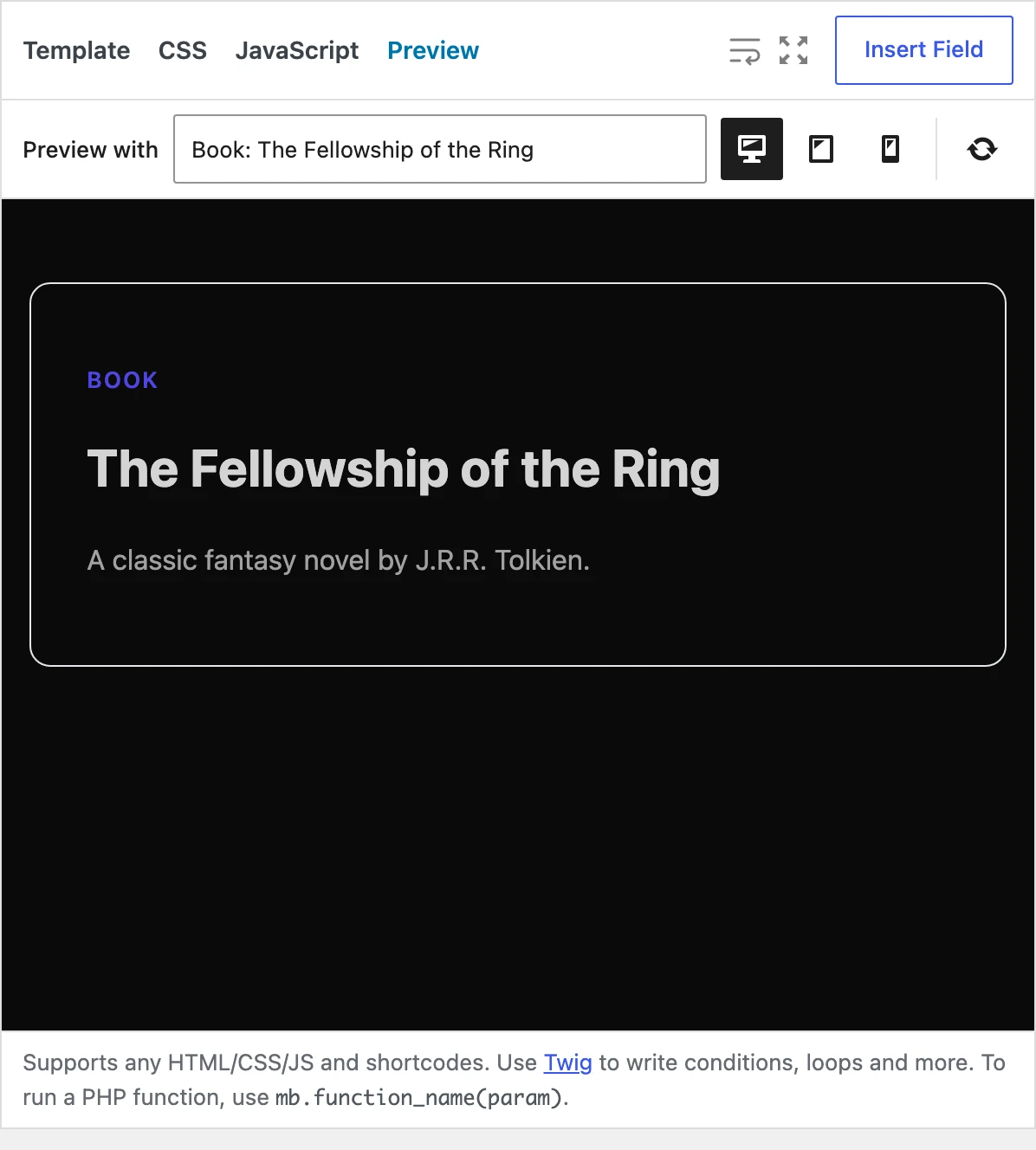
The preview renders your current template, CSS, and JavaScript on a real page of your site, with your theme styles. It uses your unsaved settings, so you can change the type or the location rules and see the result right away.
How to Use the Preview Tab
- Open a view and click the Preview tab.
- In Preview with, select the page to render the view for. You can type to search for a page.
- Switch between desktop, tablet (768px), and mobile (375px) widths to check the layout on smaller screens.
- Keep editing. While the tab is open, the preview refreshes about 1 second after you stop typing or change a setting. You can also click Refresh at any time.
The Preview with list shows only the pages that match the view's type and location rules:
- Singular views list posts, pages, and custom posts.
- Archive views list archives: post type archives, categories, tags, custom taxonomies, authors, dates, and search results.
- Action, code, shortcode, and block views list recent posts of all public post types.
If your template has a Twig syntax error or another render error, the error shows in the preview, not on your live site.
What to Know About the Preview
We render the preview on a real page of your site, not in an empty frame. The preview loads the page you select, renders the view with the same code as the front end, and loads your theme styles. So what you see is close to what your visitors see.
The preview runs in a sandboxed frame. The JavaScript in your view can't change the editor.
The preview renders the view content only. It doesn't apply the Render for and Position settings, so the theme header and footer may look different from the front end. For the final check of the full layout, open the page on the front end.
Remove the Post Type Slug from URLs
WordPress puts the post type slug in the URL of every custom post, such as /book/the-hobbit/. WordPress has no setting to remove it, so you needed a separate plugin or custom code.
Now MB Custom Post Types 2.13 can do it. Edit your post type, open the Features tab, and turn on Remove post type slug from URL:
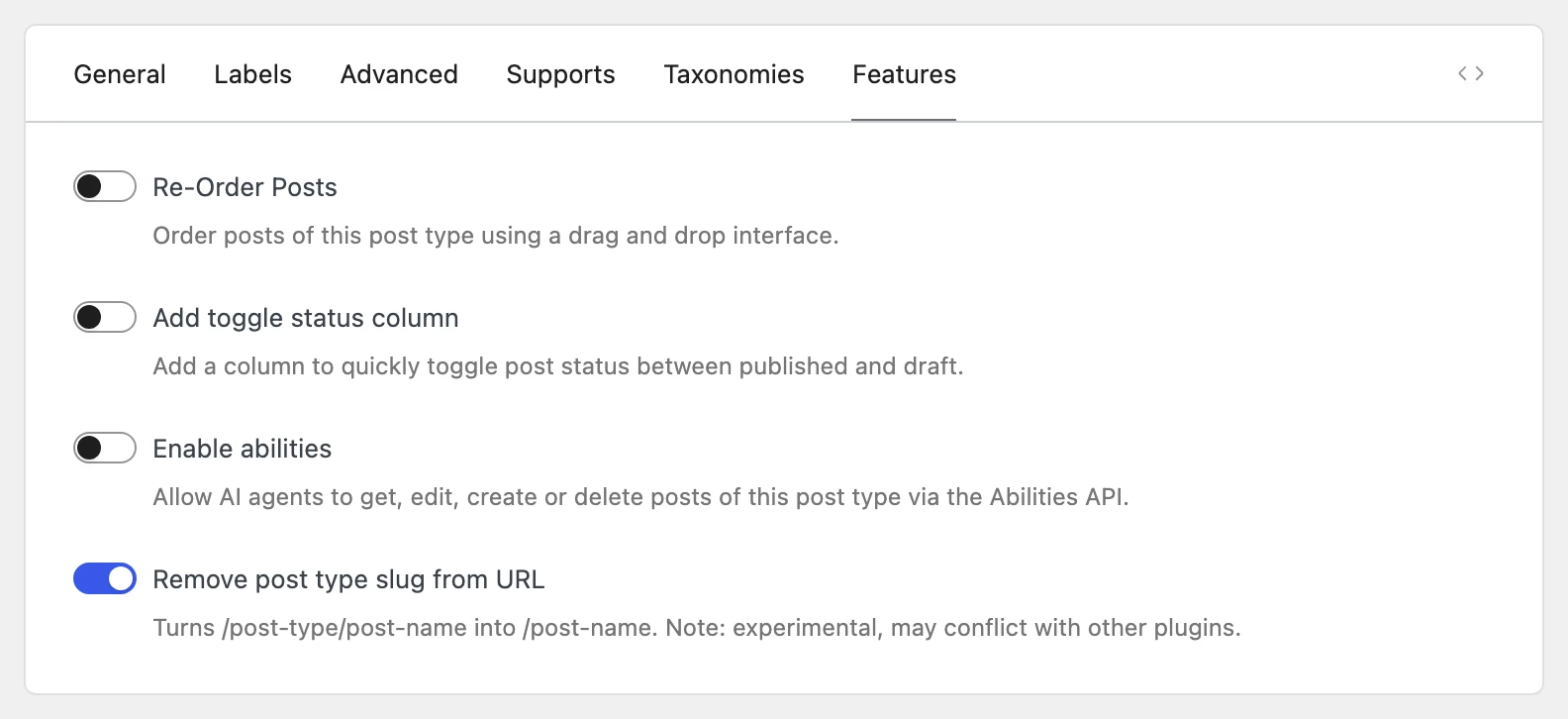
The post URLs change to /the-hobbit/. Pages and posts with the same path keep priority, old URLs still work, and the canonical link points to the short URL, so you don't lose SEO.
For the details, the edge cases, and a code alternative, read How to Remove the Custom Post Type Slug from WordPress URLs.
Safer Login and Registration Forms
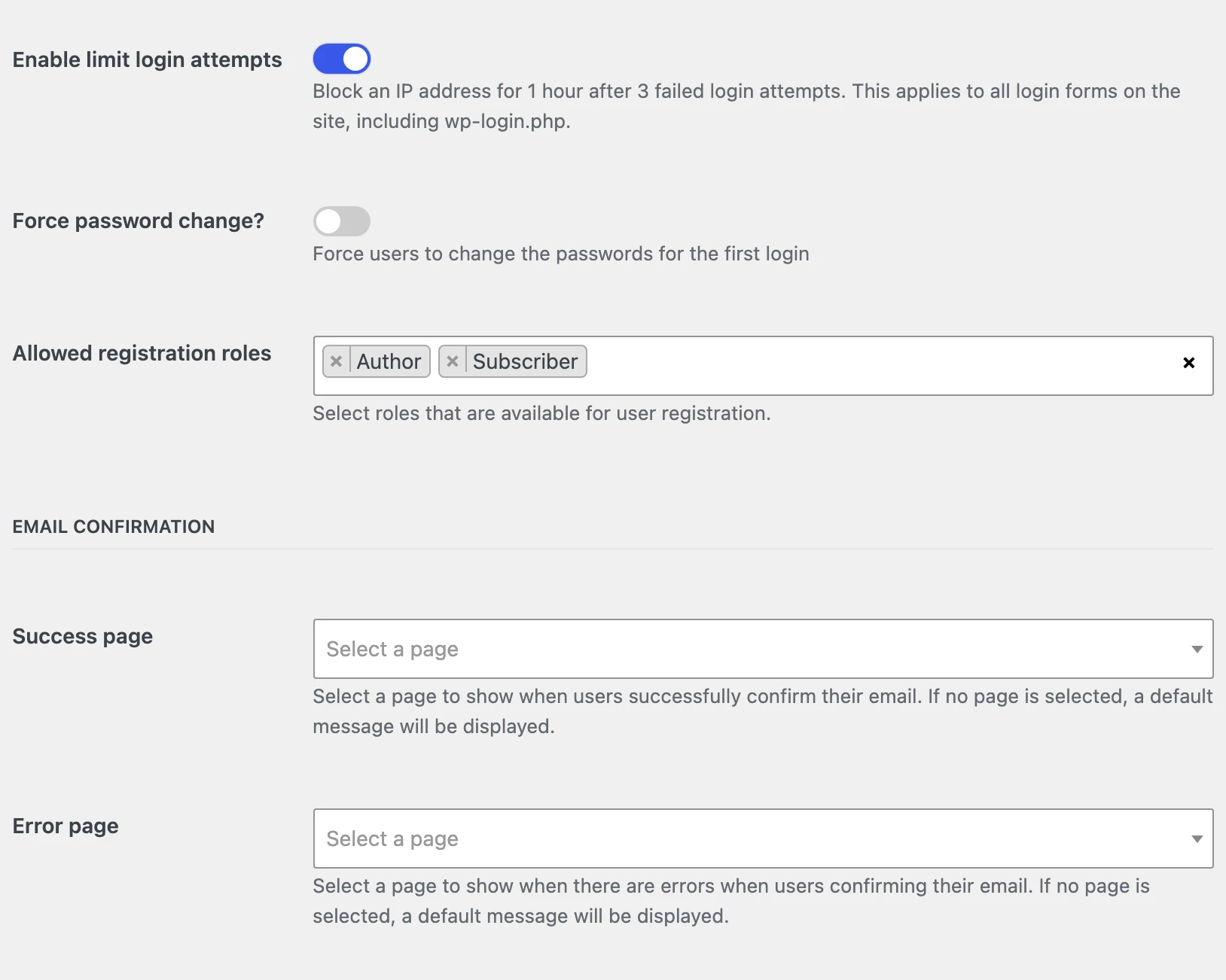
MB User Profile 2.7 adds two settings to Meta Box » User Profile:
Limit Login Attempts
Bots try thousands of passwords on WordPress login forms. Before, you needed a separate plugin to stop them. Now, turn on Enable limit login attempts:
- After 3 failed login attempts from an IP address, that IP address is blocked for 1 hour.
- The limit applies to all login forms on your site: the MB User Profile login form and
wp-login.php. It hooks into WordPress authentication, so it also counts failed logins from other forms that use the standardwp_login_failedhook. - A successful login resets the count.
If your site is behind a proxy or a CDN, make sure WordPress gets the real IP address of visitors. Otherwise, all visitors share one IP address and can block each other.
Allowed Registration Roles
The registration form has a role attribute to set the role of new users. With the new Allowed registration roles setting, you choose which roles the form can give. The default is Subscriber. If the form asks for a role that isn't in the list, the new user gets the Subscriber role.
This protects your site if someone edits the form to ask for a higher role, such as Editor or Administrator.
Important: if your registration form already uses role="author" or another role, add that role to the setting after you update. Otherwise, new users will get the Subscriber role.
This update also fixes a security issue with the Force password change setting: the plugin now checks the password before it shows the link to change the password.
Final Thoughts
Update Meta Box AIO to 3.14 to get these features. If you use the extensions separately, update MB Views to 1.17, MB Custom Post Types to 2.13, and MB User Profile to 2.7.
For details, see the documentation for the Preview tab, removing the post type slug, and MB User Profile settings.
If you're new to MB Views, see how it compares in MB Views vs. Dynamic Shortcodes. And if you're still planning your content structure, read Custom Post Types, Taxonomies, or Custom Fields: Which Should You Use?
Try the new features and let us know what you think.

 How to Create Download and Preview Buttons - P3 - Using MB Views
 How to Create a Video Gallery Page - P5 - Using MB Views
 How to Create Reusable Template Parts in WordPress