
More and more developers use AI coding tools to work faster, cut repetitive tasks, and solve hard problems quicker. I've tried many AI coding tools while developing Meta Box. I use them to build new features, fix bugs, and write documentation. After using them for a while, Cursor is the one I still use most.

Meta Box has a large codebase, multiple repositories, and more than 30 extensions. Writing code is not the hard part. Reading the existing code and working across different repos is. Here are the four things I like most about Cursor.
Cross-repository References in One Workspace
This is the feature I rely on most when working on Meta Box.
For a small project, one repository may be enough context for an AI. Meta Box is different. It has many repositories, and those components need to reference and interact with each other.
With most tools, you have to bring context from one repository into another. That takes time and uses more tokens.
Cursor handles this much better. It can read files and code from many repositories in the same workspace. I don't need to move context around by hand.
For example, when I built Block Bindings, I made a workspace with meta-box, mb-settings-page, mb-term-meta, and mb-user-meta repos. Cursor used all of them as context.

This also helps when I write documentation. After I finish code, I can reference the relevant sections from other repositories without switching projects or repeating context. Cursor handles both code and documentation in one place.
Reviewing and Editing Files Directly
Most AI tools follow the same flow:
- Give the task
- AI makes changes
- Review the changes
- Ask for more changes or edit the code yourself
Many coding agents are very good at the first 2 steps. They take a task and write code. The trouble starts when you review the result. A small adjustment can mean another prompt, more waiting, and more tokens. Often you can make that change faster yourself.
Cursor lets me combine both approaches. I ask the AI to handle a larger task, then review the changes and edit the files directly whenever I need to. Since Cursor is an IDE, I also get suggestions while typing and can press Tab to accept them. The same editor workflow makes it easy to review a pull request. I read the files, understand the changes, and fix any issue right away.
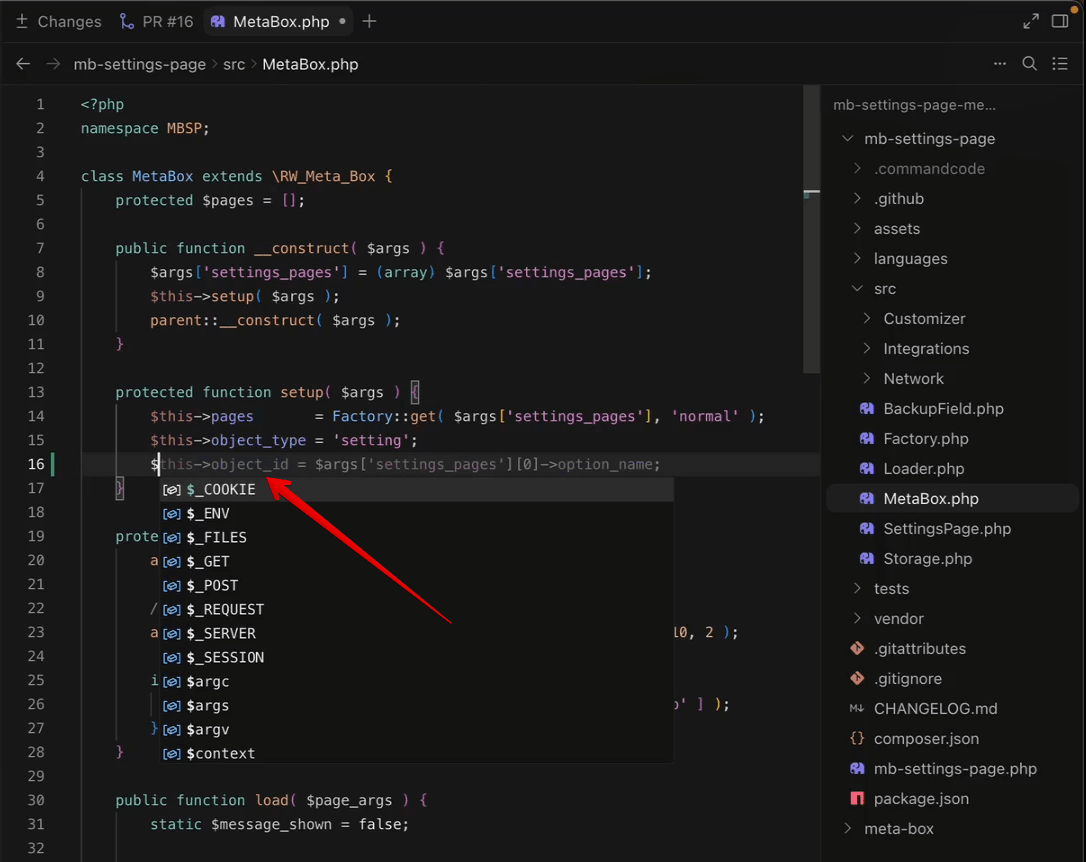
For me, this is the real difference between an AI coding assistant and a tool that only generates code. Cursor doesn't remove the developer from the workflow.
Flexible AI Models for Different Coding Tasks
Cursor supports many models, including premium and open-source ones. It also has an Auto mode that picks a model for you.
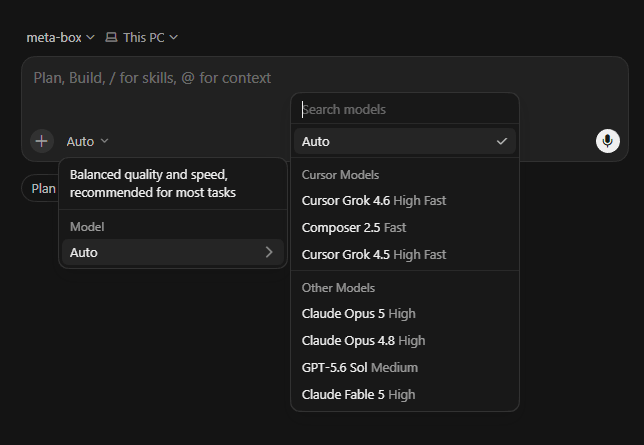
I don't use the same model for everything. It depends on the complexity of the task. For planning, analyzing a problem, or thinking through a solution, I use reasoning models such as Fable, GPT, and Opus. For everyday coding tasks, I use Auto or Cursor's models like Grok and Composer to get the work done quickly.
This workflow helps me balance quality and cost. A small bug fix in Meta Box doesn't need an expensive model. When I work on the architecture of a new feature, I switch to a stronger one.
Reasonable Pricing for My Workflow
Price matters when you pick a tool, besides features. I'm no different.
I use the Cursor Pro plan at $20 a month. For maintaining Meta Box, fixing bugs, and building new features, I find the price fair for all the features and models I mentioned. So far, I haven't hit the usage limit.
Of course, this depends on how you work. If you build an application from scratch, or you always use the most powerful models, you'll use more.
Final thoughts
For me, Cursor's biggest advantage is not that it writes code for me. It's that it reduces the friction around understanding, navigating, reviewing, and changing a large codebase. That's why Cursor stays on my list of AI coding tools while I develop Meta Box.
Have you tried Cursor yet? Or is there another AI tool that you use more often and find more valuable? I'd love to hear about your experience.

 Introducing Meta Box Abilities for AI Agents
  Create WordPress Custom Fields with AI – An Exclusive Meta Box Experience
  Introducing MB Builder 4 - New UI, More Features & API to Extend