
While building dynamic templates is relatively straightforward with page builders, it has traditionally been more challenging for Gutenberg users. However, with the block bindings feature provided by Meta Box, you can now connect custom field data to native WordPress blocks and build reusable dynamic templates more easily.
And that's exactly what we'll explore in today's tutorial. Below is an example of a dynamic movie page template built using Block Bindings and Meta Box custom fields.

We’ll build templates for 2 pages:
- Archive page: displays a listing of movies along with some key and featured information, giving visitors a quick overview of each movie.
- Single page: shows the full details of each movie.
You can apply this guide to any website you’re building, such as real estate, education, hotel booking, tourism, and so on.
Video Version

Why Build with Custom Fields and Block Bindings?
The dynamic templates help you save time and effort when building a website that has a lot of content that follows the same structure.
It becomes even more convenient when you combine custom fields with block bindings if you’re using Gutenberg and Meta Box.
Custom fields store your structured data, while Block Bindings connect that data to native WordPress blocks to display it on the frontend. Now you can bind a block to the custom fields created with Meta Box. For example, this data is bound to the custom fields of the post; the genre is bound to the terms.
Block bindings bring Meta Box field data into Gutenberg - connect fields from posts, terms, authors, or settings pages to the core blocks, right in the editor without PHP templates or a custom block.
This means you can keep your content and layout separate - update the data without changing the design, and update the template once without having to edit every page.
Before diving into the details of the tutorial, let’s check some tools we need.
Before Getting Started
Each movie is a post of a custom post type. And detailed information is stored in custom fields of the post. For demonstration, I also use a custom field of settings page for the description in the archive page, and the term meta for the description of the movie genre.
So, we highly recommend you use Meta Box AIO to have both the framework and all the features from Meta Box extensions.
To use Block Bindings, you'll need WordPress 6.9+ and Meta Box AIO 3.10+.
These are extensions we use in this practice:
- MB Custom Post Type: to create a custom post type for the movie.
- MB Builder: to have UI in the backend to create custom fields visually.
- MB Settings Page: to create a settings page.
- MB Term Meta: to add custom fields to taxonomies.
Now, let’s start.
Create a Custom Post Type, Custom Taxonomy, Settings Page and Custom Fields
In this video, to save time, we focus on how to use block binding and custom fields to create a dynamic template. So I skip creating a custom post type, custom taxonomy, settings page and custom fields step by step. I already had them and 3 field groups that applied to the movie post type, genre taxonomy and the settings page.
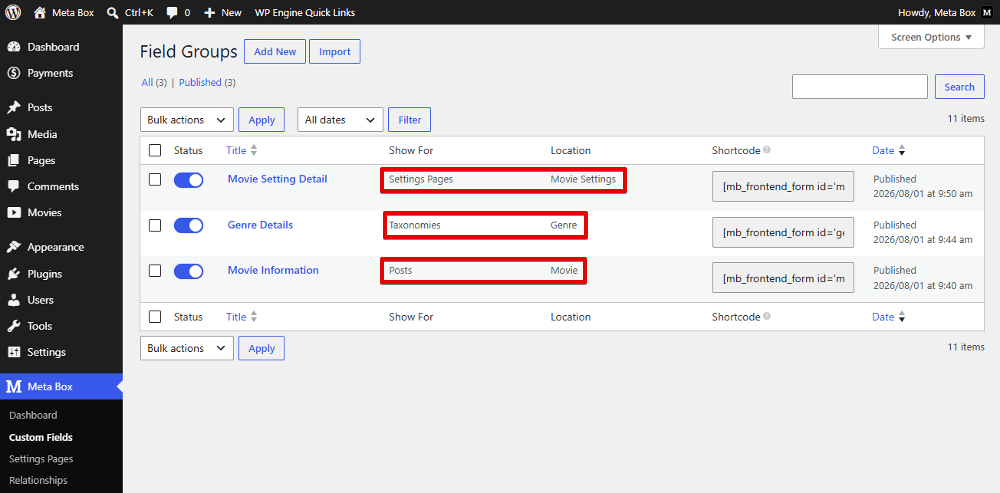
After having all the needed fields and settings, you can input data for them. For example, in the post editor, we have screen as below:
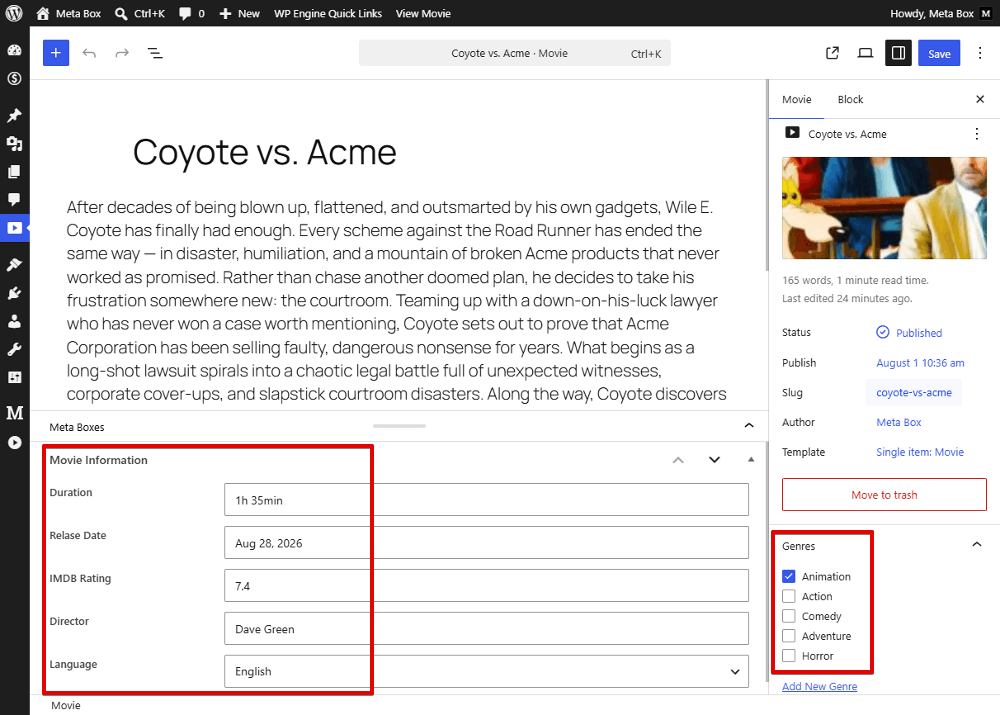
Now, it’s time to build a dynamic template for the archive page using block bindings.
Build a Dynamic Template for an Archive Page
On the archive page, besides the basic information such as post titles and the featured images, we have some special content that is displayed via block bindings. Specifically, the page description is bound from the field of settings page, and the movie details are retrieved from the custom fields of the post type. So, let’s build this page from scratch.
Go to Appearance > Editor > Template to create a new template. WordPress suggests some typical pages that you want to apply the template to. Just choose one for the archive page:

For the basic structure of the page such as header, footer, group to cover the main area and page title, just add the corresponding blocks. For example, in this practice, I follow the structure below:
- Header
- Group
- Archive Title
- Paragraph
- Footer
The Paragraph is for the description. As I mentioned at first, its content is bound from the field of a settings page via block binding. So, in the block settings sidebar, open the Attributes panel. Then, choose the attribute to bind. We choose Content for the paragraph.
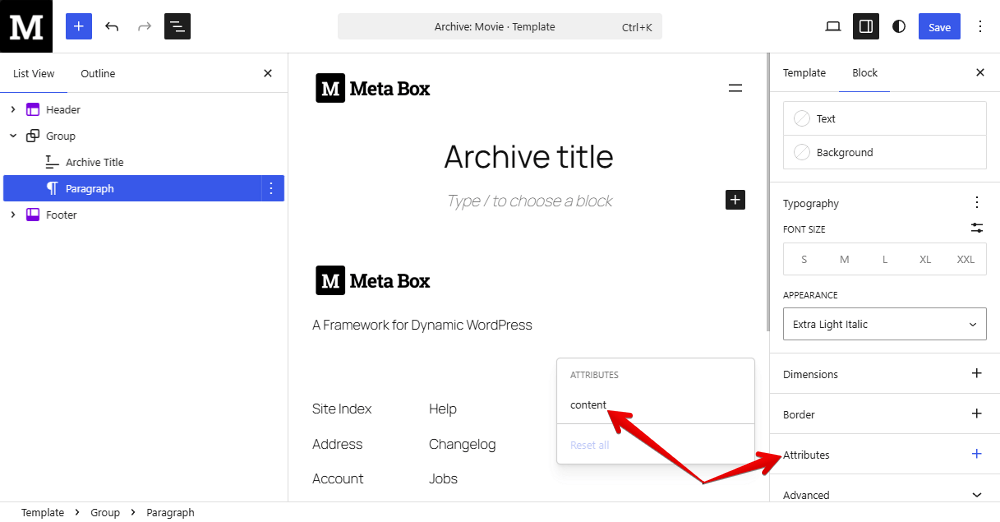
Click on it to select the Meta Box source for your field type. In this case, it is the Meta Box Setting Field. And pick the field you want to bind the data from the drop-down list.

That’s done.
Next, I add another Group block to contain the movie listing. Inside it, I add a Query Loop block since we have many movies on this page and select the suitable variation. You can delete the useless blocks or add other blocks to customize it as you want.

Now, for the highlight of the movies, I’ll display data in 2 columns: one is the label, and the other is for the value. So, add a Column block and select the layout.
In the first column, simply add a Paragraph block and enter the label directly. It will be fixed for all the movies.
In the remaining column, also add a Paragraph block. The data is bound from the custom field, so, open the Attributes panel, click on the content. Here, you can see the Meta Box Post Field option, it’s for the custom fields applied to the post type. Select it, then pick the field you want to bind data. It is dynamic.
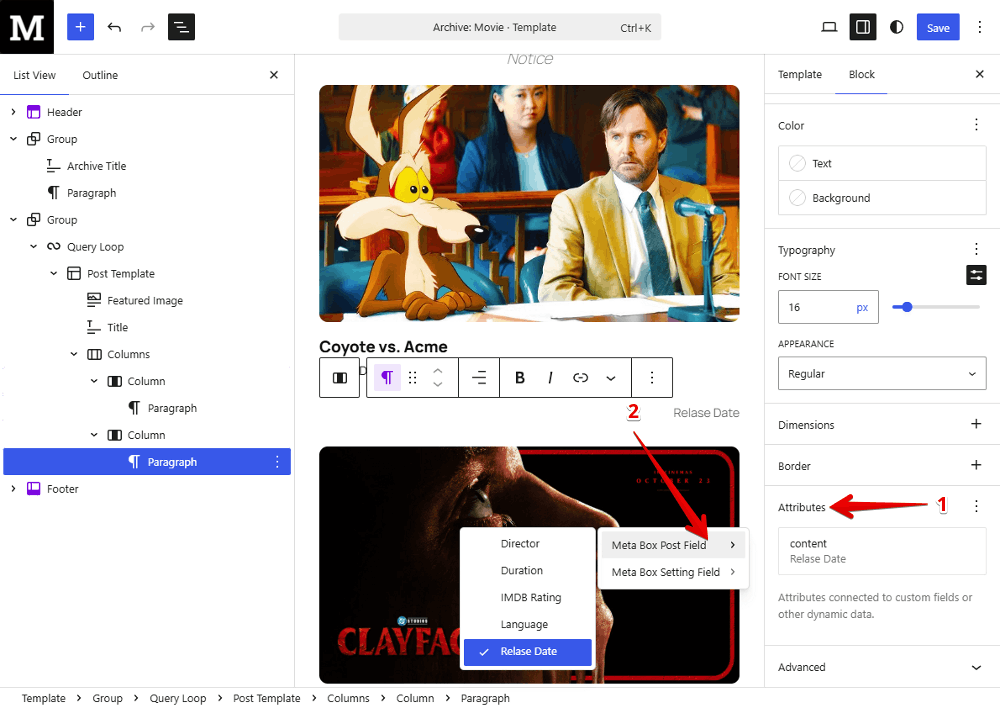
Do the same for the other key information. I duplicate to save time, and just change the Meta Box field source.

You can also add other block to set the layout and make the template more attractive. For example, I add an icon for the rating data. And this is the completed strcuture of the page I have:

On the frontend, all the data is get and displayed exactly and dynamically. To have a better look at the archive page, you can style the template by setting the blocks one by one. The data that is bound through block bindings is styled as usual such as typography, dimensions, borders, etc.
And we have the final look of our template for the archive page as we expected.
Build Dynamic Template for the Single Page
Retrieving and displaying data on the single page is similar to the archive page.
We have a few special data. For instance, the description of the movie genre is the value of the term meta. While the full details are the field values of the post type. For the layout, we’ll display data in two columns. You can change the layout as you want.
Now, it’s time to build it.
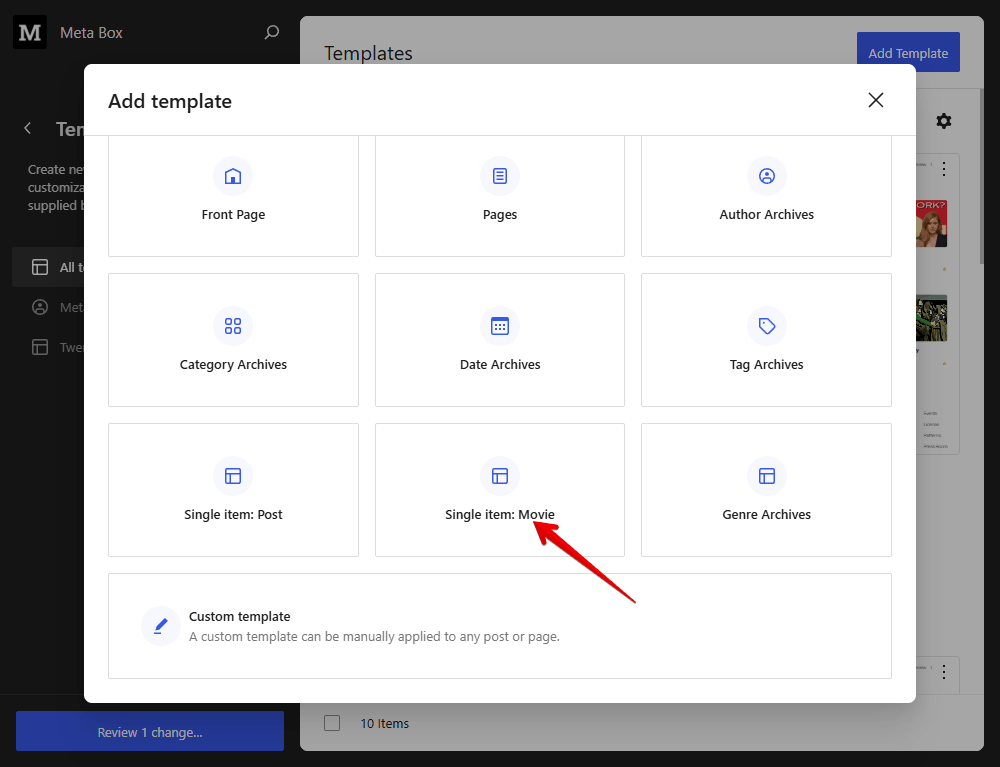
Choose the option for the single item to apply the template for the single movie page and select all movies.
Simply add the blocks for your expected template.
Also add a Group block to cover the page. Then use a Column block to set the layout for the page. In the first column, we’ll display the featured image of the post.
Then, move to the second column to show the information of the movie. The description of the genre is the term meta. So, choose the Meta Box Term Field, and pick the field.

For the detail information of the movie, do the same with the highlight in the archive page. Just change the field source.

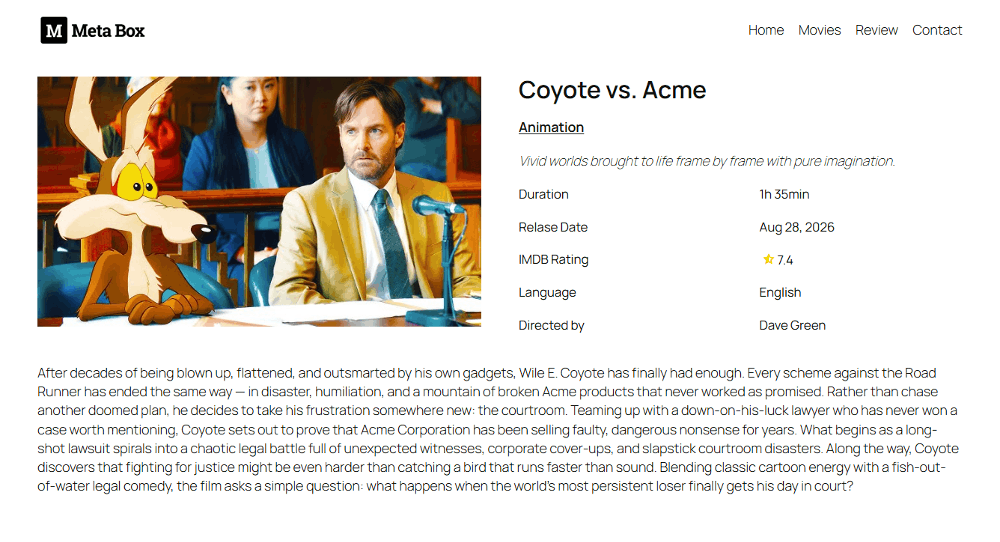
After adding and retrieving all the data you need, check it out on the frontend. And we have a template with dynamic data. You can also style it to make it more attractive. And this is the new look of my single page.
Last Words
With Block Bindings, building dynamic templates in Gutenberg no longer has to be complicated. By combining Meta Box custom fields with native WordPress blocks, you can create reusable templates that are easier to build, manage, and scale.
I hope this example gives you a practical starting point for building your own dynamic templates. Give it a try and see what you can build with Block Bindings and Meta Box!
- Advanced Map Listings
- Author Bio
- Better 404 Page
- Blogs for Developers
- Building a Simple Listing Website with Filters
- Building an Event Website
- Building Forms with MB Frontend Submission
- Coding
- Create a Chronological Timeline
- Custom Fields Fundamentals
- Design Patterns
- Displaying Posts with Filters
- Download and Preview Buttons
- Dynamic Banners
- Dynamic Landing Page
- FAQs Page
- Featured Products
- Filter Posts by Relationships
- Filter Posts by Taxonomy
- Full Site Editing
- Google Fonts
- Gutenberg
- Hotel Booking
- Latest Products
- Logo Carousel
- MB Builder Applications
- MB Group Applications
- MB Views Applications
- Most Viewed Posts
- Opening Hours
- OTA Website
- Pricing Table Page
- Product Page
- Product Variations
- Querying and Showing Posts by Custom Fields
- Recipe
- Related Posts via Relationship
- Restaurant Menus
- SEO Analysis
- Simple LMS
- Speed Up Website
- Taxonomy Thumbnails
- Team Members
- User Profile
- Video Gallery

 Connect Meta Box Fields to Gutenberg Blocks with Block Bindings
  Build Gutenberg Blocks Visually With MB Builder
  Meta Box Updates: More Support to Gutenberg, Post Type Templates, Relationships, and Elementor