
Previously on the Meta Box blog, we shared different ways to filter content using custom fields, taxonomy, and relationships. Today, we’ll go one step further by bringing everything together in one practical example with Meta Box that combines taxonomy and custom field filtering.
This is a very common requirement for service-based websites, as well as listing websites such as events, courses, job listings, or real estate. In this tutorial, we’ll demonstrate this using a spa services website as a real-world example, allowing visitors to filter services by category - such as Body, Facial, Hair or Laser, and sort them by the number of sessions stored in custom fields.

Let’s dive in!
Video Version

Before Getting Started
In this tutorial, we’ll create a custom post type to manage all the spa services. Each service belongs to one or more taxonomies for categorization and also contains custom fields for service details like treatment plans, price, and duration.
So, I recommend using Meta Box AIO, which includes the framework and all extensions, such as:
- MB Admin Columns: to display service type directly in the dashboard;
- MB Custom Post Type: to create a custom post type for spa service and taxonomies for service categories;
- MB Builder: to create custom fields for storing service information;
- MB Views: to create a template and implement the front-end filtering logic.
Create a Custom Post Type & Taxonomy
For this tutorial, I’ve already prepared a custom post type to store spa services. Each service is saved as a post in this post type, making it easy to manage and display later using MB Views.

In the Meta Box screen, move to Taxonomies to create a taxonomy for service type.

Make sure to choose the associated post type.

And in the Advanced tab, enable the option to display the taxonomy in the admin columns. This option is available when the MB Admin Columns extension is activated, and it allows you to display a taxonomy column on the post type listing screen.

We can create terms as you want.

Create Custom Fields for Services
Go to Meta Box > Custom Fields to create some custom fields for storing information for each service.
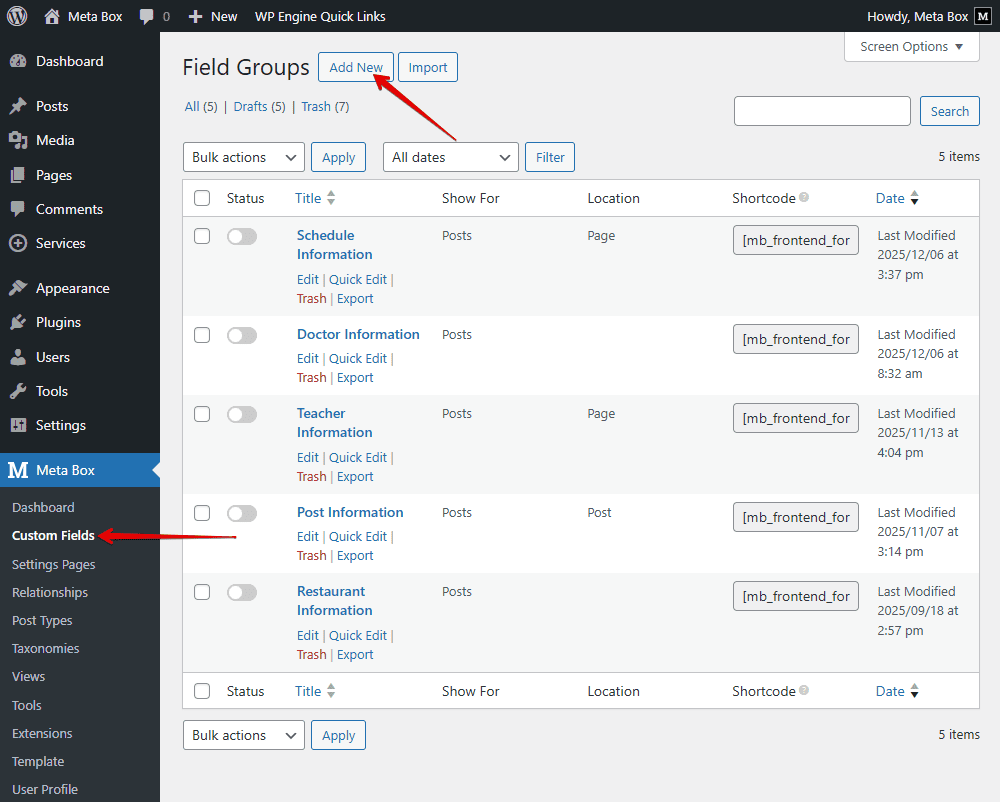
I’ve created the field group with some fields like price, duration, description, gallery, and treatment plan so that you can choose how many sections we need for that service.

The Treatment Plan field is the most important one in this tutorial because we’ll later use it to filter services on the front end based on custom field values. Note that you can create any field you need for the service listings.
Once done, move to the Settings tab and set the Location as Post Type. Choose Services to ensure that the custom fields appear only for service posts.

Now, you’ll see all the fields we’ve just created displayed under the post editor along with the taxonomy section, where you can assign service types.

You can now fill in spa service details. And then, we have all the posts with the taxonomy section displayed in the admin dashboard.

Show Spa Services Listing
Before creating any filters, we first need to make sure that our spa services can already be displayed correctly on the frontend.
First, create a new page specifically for the spa service listing. This page will act as the main service archive for users to browse.

Next, go to Meta Box > Views and create a new template specifically for this page.
With MB Views, you can add some lines of code directly in the Template tab.

In here: This line is to query and retrieve all posts from the Service post type.
{% set args = { post_type: 'service', posts_per_page: -1, orderby: 'date', order: 'DESC' } %}
{% set posts = mb.get_posts(args) %}
MB Views makes this step very convenient; you don’t need to write all the codes manually. To display the service information from your custom fields, simply click the Insert Field button and select any fields from the right sidebar.
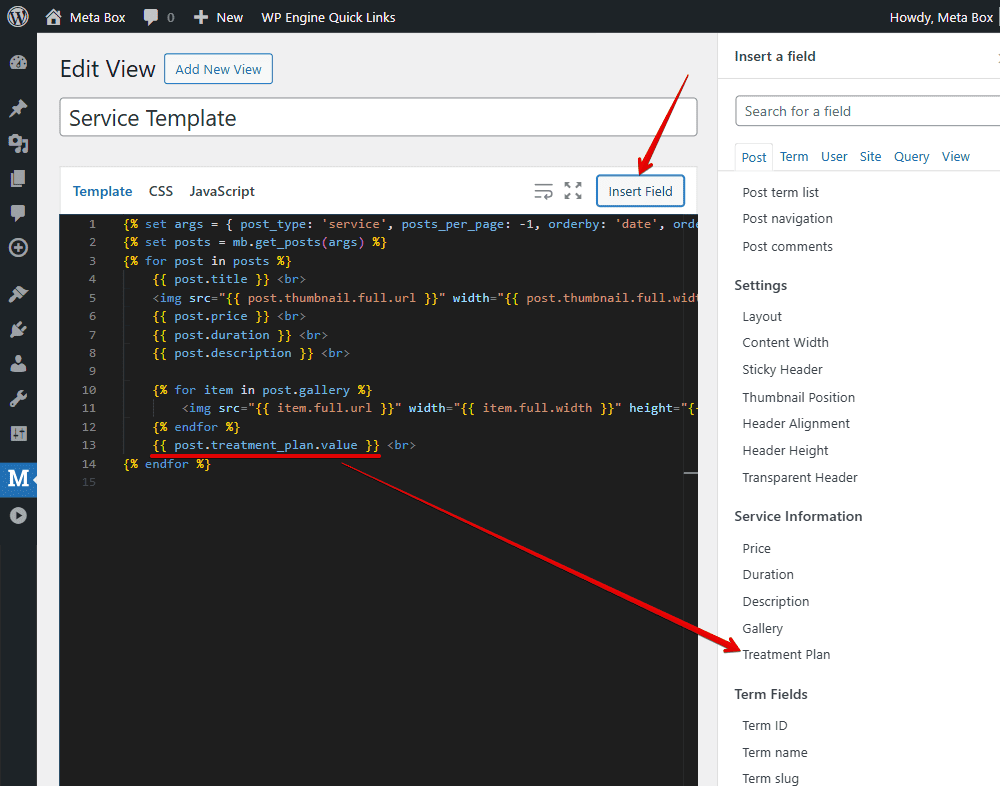
Make sure to include the Treatment Plan field. This field will be important later, because we’ll use it as one of the criteria for filtering the spa services on the frontend.
After inserting all the fields, move to the Settings section to set where this template will appear. Set the Type to Singular, and choose the page you created for the spa service listings.

On the frontend, you’ll see all the spa service information displayed. At this stage, it appears as a basic list without any styling.

To make it look more visually appealing, add some div tags and classes in the Template tab, and modify the code.

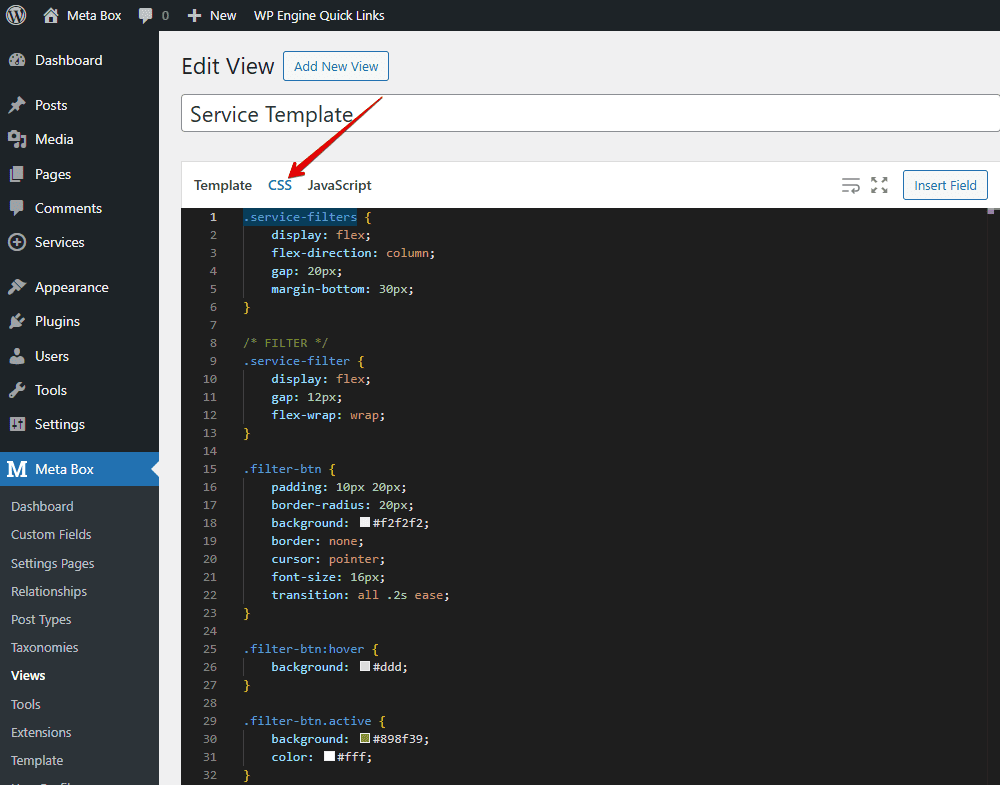
Then, switch to the CSS tab to style the layout.
.services-grid {
    position: relative;
}

.service-item {
    float: left;
    width: 25%;
    box-sizing: border-box;
    padding: 10px;
}

.service-item>div {
    background: #fff;
    border-radius: 12px;
    overflow: hidden;
    box-shadow: 0 8px 24px rgba(0, 0, 0, .06);
    transition: .3s;
}

.service-item:hover>div {
    transform: translateY(-4px);
}

.service-thumb {
    width: 100%;
    aspect-ratio: 16 / 9;
    background: #eee;
    overflow: hidden;
}

.service-thumb img {
    width: 100%;
    height: 100%;
    object-fit: cover;
    display: block;
}

.service-body {
    padding: 16px;
}

.service-title {
    font-size: 18px;
    font-weight: 600;
    margin: 0 0 10px;
}

.service-title a {
    text-decoration: none;
}

.service-meta {
    display: flex;
    flex-direction: column;
    gap: 6px;
    margin-top: 8px;
}

.service-price {
    font-size: 18px;
    font-weight: 700;
    color: #c89b3c;
    line-height: 1.2;
}

.service-price .currency {
    font-size: 14px;
    vertical-align: top;
    margin-right: 2px;
    opacity: 0.8;
}

.service-duration {
    font-size: 12px;
    color: #444;
    background: #f3f3f3;
    padding: 4px 8px;
    border-radius: 12px;
}

.service-plan {
    font-size: 14px;
    padding: 5px 0px;
}

.service-price {
    color: #c89b3c;
}
Now, the service listings look much better.

Let’s move on to create filtering by custom field and taxonomy.
Create Filters by Taxonomy & Field's Value
Back to the template created with MB Views, we’ll add a bit of logic to filter spa services dynamically based on user selections on the frontend.

<script src="https://ajax.googleapis.com/ajax/libs/jquery/3.7.1/jquery.min.js"></script>
<script src="https://npmcdn.com/[email protected]/dist/isotope.pkgd.js"></script>

{% set args = { post_type: 'service', posts_per_page: -1, orderby: 'date', order: 'DESC'} %}
{% set posts = mb.get_posts(args) %}

<div class="service-filters">
    <div class="service-filter service-type-filter">
        <button class="filter-btn active" data-filter="*" data-group="type">All Services</button>
        {% set service_types = mb.get_terms({
            taxonomy: 'service-type',
            hide_empty: true
        }) %}
        {% for term in service_types %}
            <button
                class="filter-btn"
                data-filter=".{{ term.slug }}"
                data-group="type">
                {{ term.name }}
            </button>
        {% endfor %}
    </div>

    <div class="service-filter service-plan-filter">
        <button class="filter-btn active" data-filter="*" data-group="plan">All Plans</button>
        {% set plans = [] %}
        {% for post in posts %}
            {% if post.treatment_plan.label not in plans %}
                {% set plans = plans|merge([post.treatment_plan.label]) %}
            {% endif %}
        {% endfor %}
        {% set plans = plans|sort((a, b) => a <=> b) %}
        {% for plan in plans %}
            {% set plan_class = 'plan_' ~ plan|lower|replace({' ': '_'}) %}
            <button
                class="filter-btn"
                data-filter=".{{ plan_class }}"
                data-group="plan">
                {{ plan }}
            </button>
        {% endfor %}
    </div>
</div>

<div class="services-grid">
    {% for post in posts %}
    {% set post_terms = mb.get_the_terms(post.ID, 'service-type') %}
    {% set term_classes = [] %}
    {% if post_terms %}
        {% for term in post_terms %}
            {% set term_classes = term_classes|merge([term.slug]) %}
        {% endfor %}
    {% endif %}
    {% set plan_class = 'plan_' ~ post.treatment_plan.label|lower|replace({' ': '_'}) %}
    <div class="service-item {{ term_classes|join(' ') }} {{ plan_class }}">
        <div>
            <div class="service-thumb">
                <img src="{{ post.thumbnail.full.url }}" alt="{{ post.title }}">
            </div>
            <div class="service-body">
                <h3 class="service-title">
                    <a href="{{ post.url }}">{{ post.title }}</a>
                </h3>
                <div class="service-meta">
                    <div class="service-price">$ {{ post.price }}</div>
                    <div class="service-plan">Treatment Plan: {{ post.treatment_plan.label }}</div>
                    <div class="service-duration">⏱ {{ post.duration }} mins</div>
                </div>
            </div>
        </div>
    </div>
{% endfor %}
</div>
In there:
Wee load jQuery and Isotope libraries to handle user interactions and enable dynamic filtering and layout updates on the frontend without reloading the page.
<script src="https://ajax.googleapis.com/ajax/libs/jquery/3.7.1/jquery.min.js"></script>
<script src="https://npmcdn.com/[email protected]/dist/isotope.pkgd.js"></script>
We use the service-filters class to create a wrapper for the filter section.
We start by creating a taxonomy-based filter. And create the All Services button, which resets the filter and shows all services by default.
<div class="service-filter service-type-filter">
<button class="filter-btn active" data-filter="*" data-group="type">All Services</button>
The following code retrieves all terms from the service-type taxonomy and only includes terms that already have services assigned to them.
{% set service_types = mb.get_terms({
    taxonomy: 'service-type',
    hide_empty: true
}) %}
We loop through each service type and render a filter button for it.
{% for term in service_types %}
   <button
        class="filter-btn"
        data-filter=".{{ term.slug }}"
        data-group="type">
        {{ term.name }}
    </button>
{% endfor %}
Each button targets services with a matching CSS class, so every service item below must include the corresponding term slug class for the filter to work correctly.
Then, we move on to filtering by custom field values, using the Treatment Plan field. Add another button named all plans, which resets the custom field filter and shows all services.
<button class="filter-btn active" data-filter="*" data-group="plan">All Plans</button>
We loop through all the posts to collect the treatment plans. The goal is to get the label that will be displayed to users. We avoid duplicates by only adding a label if it’s not already in the list. This ensures each plan shows up just once.
{% set plans = [] %}
{% for post in posts %}
    {% if post.treatment_plan.label not in plans %}
        {% set plans = plans|merge([post.treatment_plan.label]) %}
    {% endif %}
{% endfor %}
{% set plans = plans|sort((a, b) => a <=> b) %} is to sort the plan labels alphabetically so they appear in order in the filter. This makes it easier for users to find a plan.
{% for plan in plans %}
    {% set plan_class = 'plan_' ~ plan|lower|replace({' ': '_'}) %}
    <button
        class="filter-btn"
        data-filter=".{{ plan_class }}"
        data-group="plan">
        {{ plan }}
    </button>
{% endfor %}
This part is to loop through all plans and render a filter button so that users can see the plan name and click filters as they want.
After having the filter buttons, we need to add matching CSS classes to each post so the filters actually work.
For each post, this line below gets the terms of the post in the service-type taxonomy.
{% set post_terms = mb.get_the_terms(post.ID, 'service-type') %}
We initialize an empty array, then add each term’s slug so it can be used as a CSS class.
{% set term_classes = [] %}
{% if post_terms %}
    {% for term in post_terms %}
        {% set term_classes = term_classes|merge([term.slug]) %}
    {% endfor %}
{% endif %}
Next, we create a class for the treatment plan.
{% set plan_class = 'plan_' ~ post.treatment_plan.label|lower|replace({' ': '_'}) %}
Finally, the following line ensures that each item has all the necessary filter classes for the filtering logic to work properly.
<div class="service-item {{ term_classes|join(' ') }} {{ plan_class }}"
Move to the CSS tab, add more codes to style the filter section.
.service-filters {
    display: flex;
    flex-direction: column;
    gap: 20px;
    margin-bottom: 30px;
}

.service-filter {
    display: flex;
    gap: 12px;
    flex-wrap: wrap;
}

.filter-btn {
    padding: 10px 20px;
    border-radius: 20px;
    background: #f2f2f2;
    border: none;
    cursor: pointer;
    font-size: 16px;
    transition: all .2s ease;
}

.filter-btn:hover {
     background: #ddd;
}

.filter-btn.active {
    background: #898f39;
    color: #fff;
}
Now, in the Javascript tab, add scripts to make the filtering interactive.
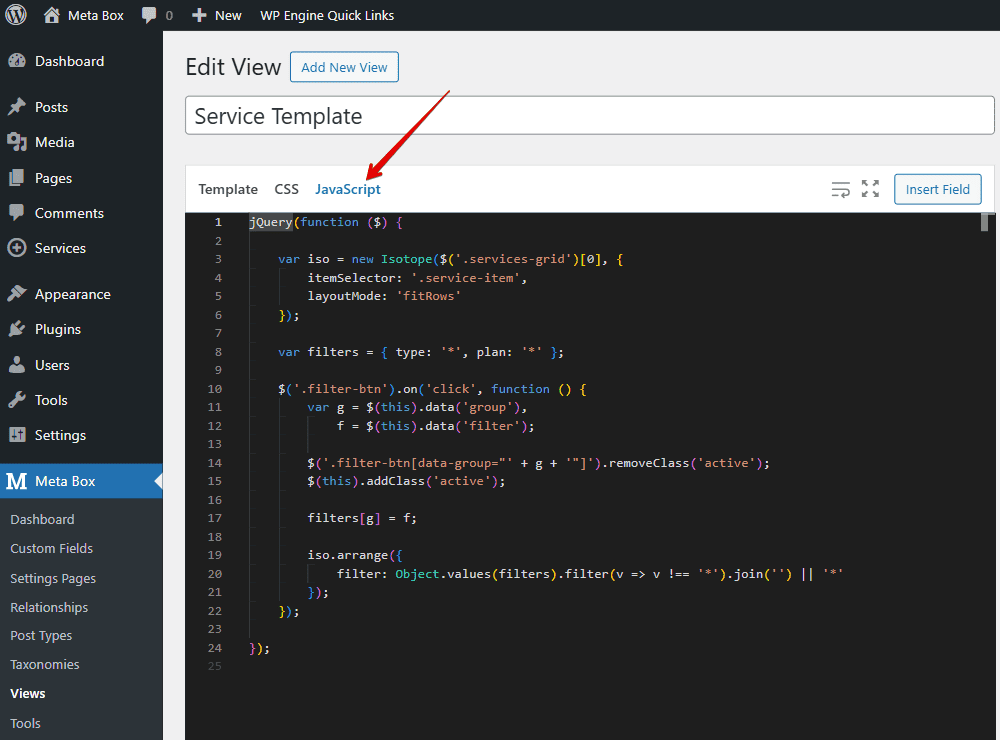
jQuery(function ($) {

    var iso = new Isotope($('.services-grid')[0], {
        itemSelector: '.service-item',
        layoutMode: 'fitRows'
    });

    var filters = { type: '*', plan: '*' };

    $('.filter-btn').on('click', function () {
        var g = $(this).data('group'),
            f = $(this).data('filter');

        $('.filter-btn[data-group="' + g + '"]').removeClass('active');
        $(this).addClass('active');

        filters[g] = f;

        iso.arrange({
            filter: Object.values(filters).filter(v => v !== '*').join('') || '*'
        });
    });

});
In there:
We initialize an Isotope library to handle the grid layout and dynamic show/hide of posts.
var iso = new Isotope($('.services-grid')[0], {
    itemSelector: '.service-item',
    layoutMode: 'fitRows'
});
var filters = { type: '*', plan: '*' } This line is to keep track of the current filter states in a filters object.
When a filter button is clicked, we update the active button styling and also update the corresponding filter in the filters object. And also retrieve the values from the data-filterand button-groupattributes.
$('.filter-btn').on('click', function () {
    var g = $(this).data('group'),
        f = $(this).data('filter');
The following code is to keep only one active button per group.
$('.filter-btn[data-group="' + g + '"]').removeClass('active');
$(this).addClass('active');
And filters[g] = f; updates the filter state for the group.
These codes below apply the selected filters to show only matching items, or all if none are selected.
iso.arrange({
    filter: Object.values(filters).filter(v => v !== '*').join('') || '*'
});
That’s all for the code. I’ve put everything on GitHub, so you can check it out there.
Move to the frontend to see the result.
Now the filter works perfectly: it dynamically shows or hides posts according to the categories, tags, and values from custom fields, so users can see exactly the items that match their selected filters.
Last Words
In this tutorial, we’ve shown you how to combine taxonomy and custom field filtering with Meta Box to build flexible and user-friendly listing pages. We hope this guide helps you apply these techniques to your own projects.
For more tips and examples on working with custom fields, relationships, and queries, be sure to explore other tutorials on the Meta Box blog.
- Author Bio
- Better 404 Page
- Blogs for Developers
- Building a Simple Listing Website with Filters
- Building an Event Website
- Building Forms with MB Frontend Submission
- Coding
- Create a Chronological Timeline
- Custom Fields Fundamentals
- Design Patterns
- Displaying Posts with Filters
- Download and Preview Buttons
- Dynamic Banners
- Dynamic Landing Page
- FAQs Page
- Featured Products
- Filter Posts by Relationships
- Filter Posts by Taxonomy
- Full Site Editing
- Google Fonts
- Gutenberg
- Hotel Booking
- Latest Products
- Logo Carousel
- MB Builder Applications
- MB Group Applications
- MB Views Applications
- Most Viewed Posts
- Opening Hours
- OTA Website
- Pricing Table Page
- Product Page
- Product Variations
- Querying and Showing Posts by Custom Fields
- Recipe
- Related Posts via Relationship
- Restaurant Menus
- SEO Analysis
- Simple LMS
- Speed Up Website
- Taxonomy Thumbnails
- Team Members
- User Profile
- Video Gallery
 How to Create Filters for Real Estate Page - Meta Box + Bricks
  How to Filter Posts by Taxonomy in the Admin Dashboard
  How to Filter Posts by Custom Fields and Custom Taxonomies on Archive Pages