
If your data already has a clear hierarchical structure, and you want a more intuitive way to group and display related items without adding extra fields or taxonomies, you can build a filter based on the parent posts easily with the help of MB Views. In this guide, we’ll explore how to do it.
To make it easier to visualize, let’s walk through a specific scenario.

Each filter is a parent post of the class post type. And when a user clicks on a parent, its corresponding child posts will be displayed along with their details.
Video Version

Before Getting Started
Obviously, we’ll need to have a hierarchical custom post type, then use code and JavaScript in MB Views to build the filter. In addition, I also added some extra information for classes via custom fields. So, I recommend you use Meta Box AIO, to have both the framework and all the functionalities from extensions in it. Especially, we use:
- MB Custom Post Type: to create a custom post type, in this case, it is the
class. - MB Views: to create a template for building a filter based on parent posts.
- MB Builder: to have UI in the backend, to create custom fields visually.
Now, let’s start.
Create a Custom Post Type and Custom Fields
Go to Meta Box > Post Types, and create a new one. I’ve had it already.

Remember to enable the option as below to make it hierarchical, allowing parent–child relationships.

Also, you should move to the Features tab to turn on the re-order post, which supports you rearrange posts just by dragging and dropping, including hierarchy posts.

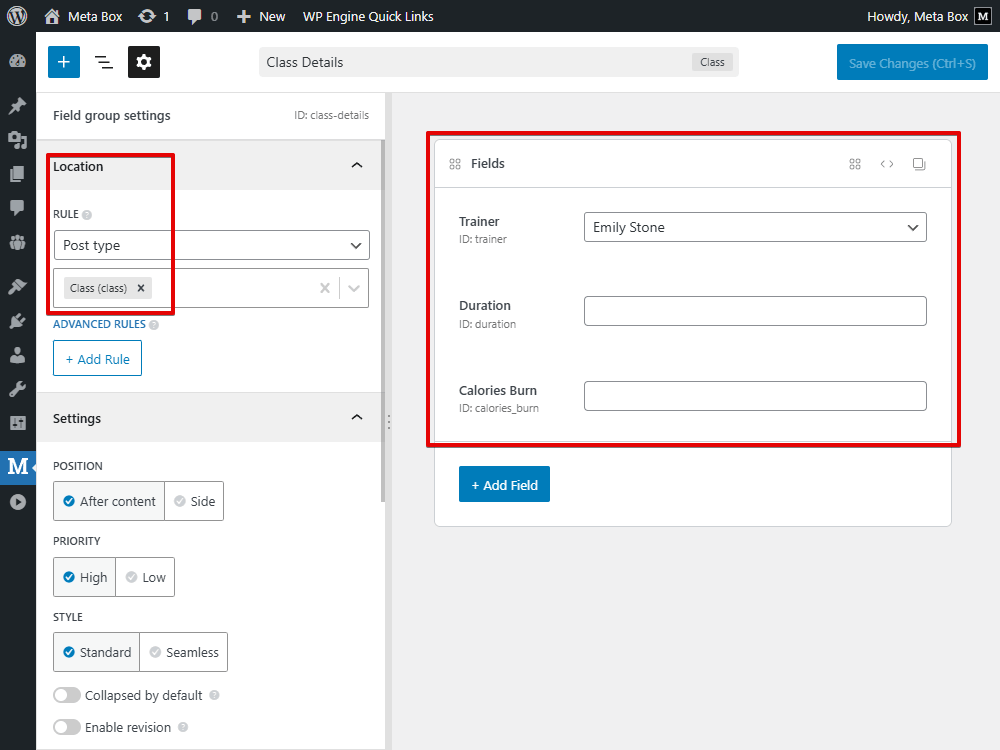
I’ve also created a field group for the class details with some fields. You can create them as you need. Then, I applied this field group to the class post type.
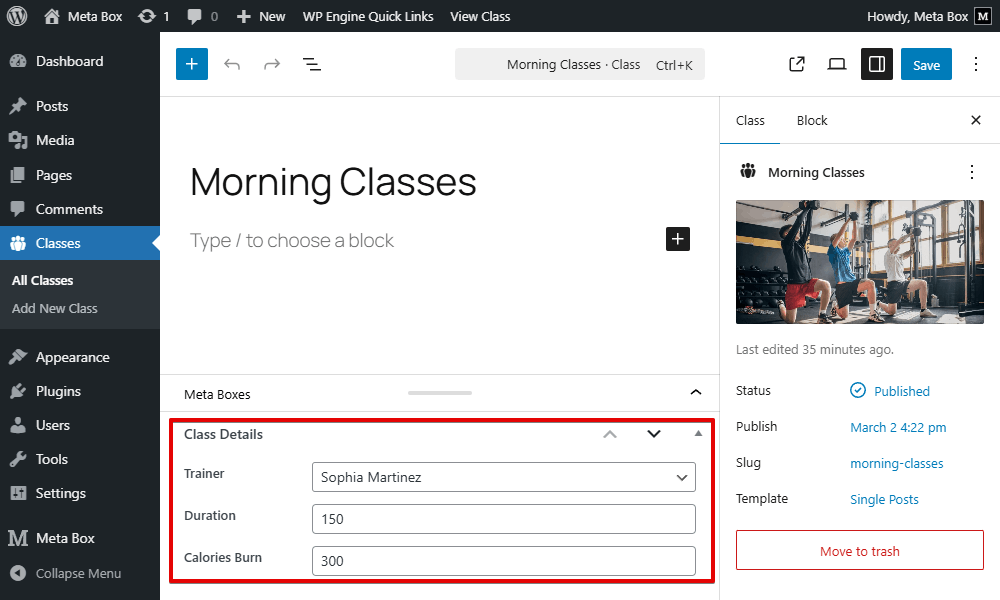
As a result, when you create a new class, you can see the custom fields that you can input data for them.
These are the posts we have.
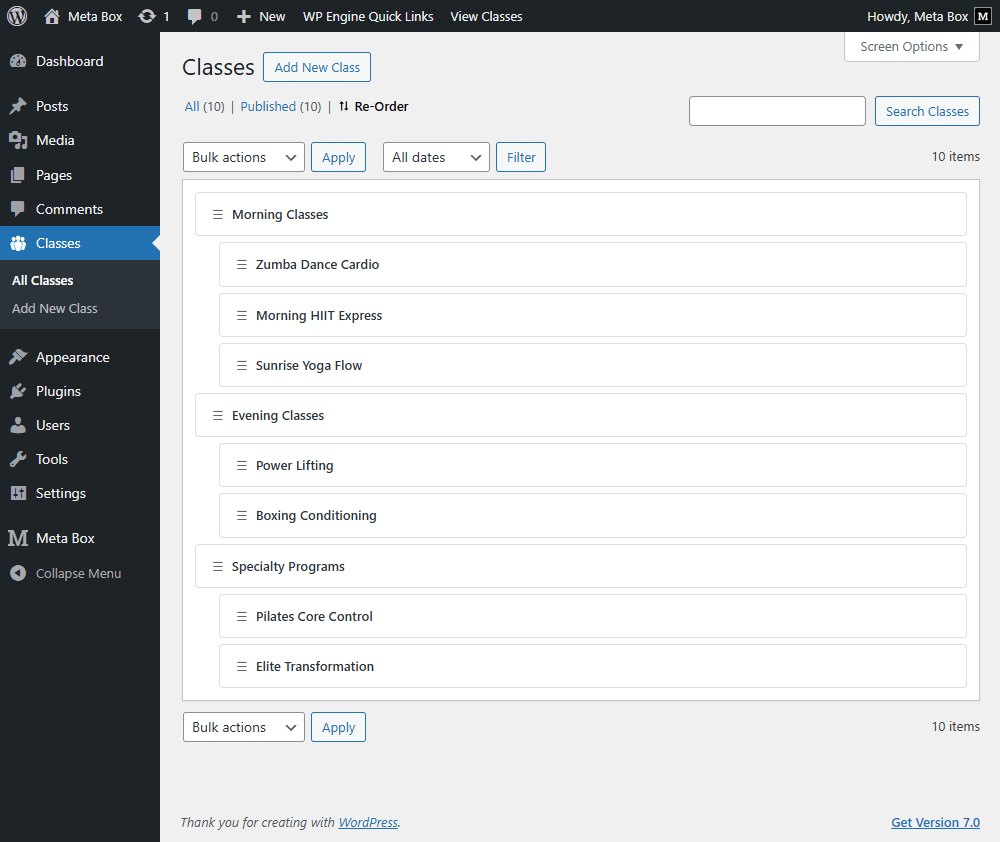
To re-order them, just navigate to this tab, drag and drop the child post to the parent one you want.
Display Posts on a Page
We need to have a new page first.

Now, I’ll use MB Views to display classes on that page.
Navigate to the Views in Meta Box, and create a new view.
In the Template tab, I add code to display posts and their details on the page.
{% set posts = mb.get_posts({ post_type: 'class', posts_per_page: -1, orderby: 'menu_order', order: 'ASC' }) %}
{% for post in posts %}
{% endfor %}

It means we’ll get all the posts from the class post type, and use a loop to get all of them since there are many posts.
Inside the loop, we’ll insert fields to get the data we want for each post. I use the Insert Field button, then simply select the field I want to insert.
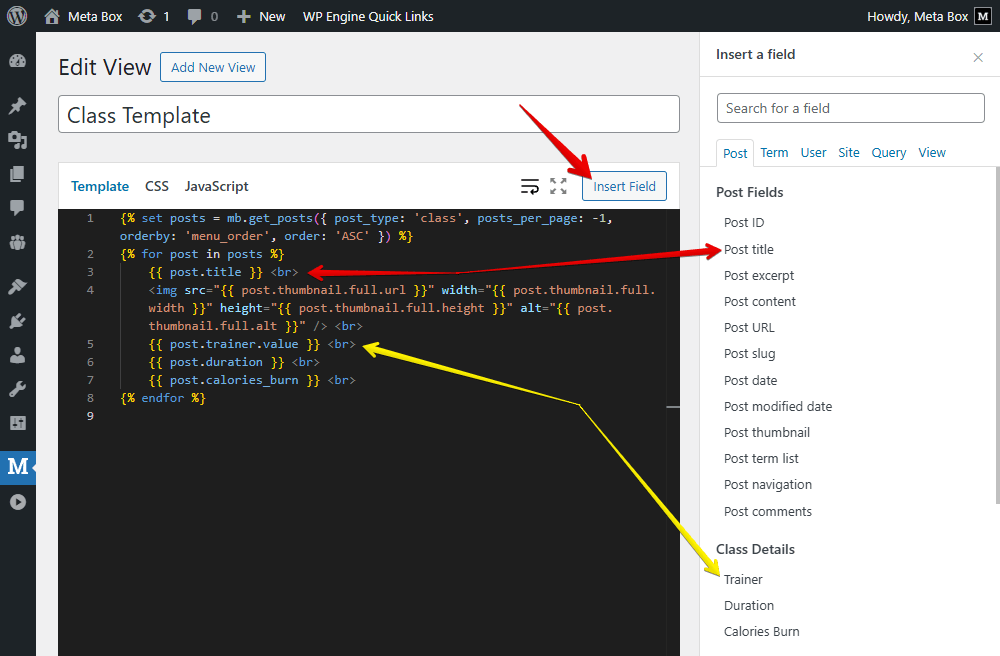
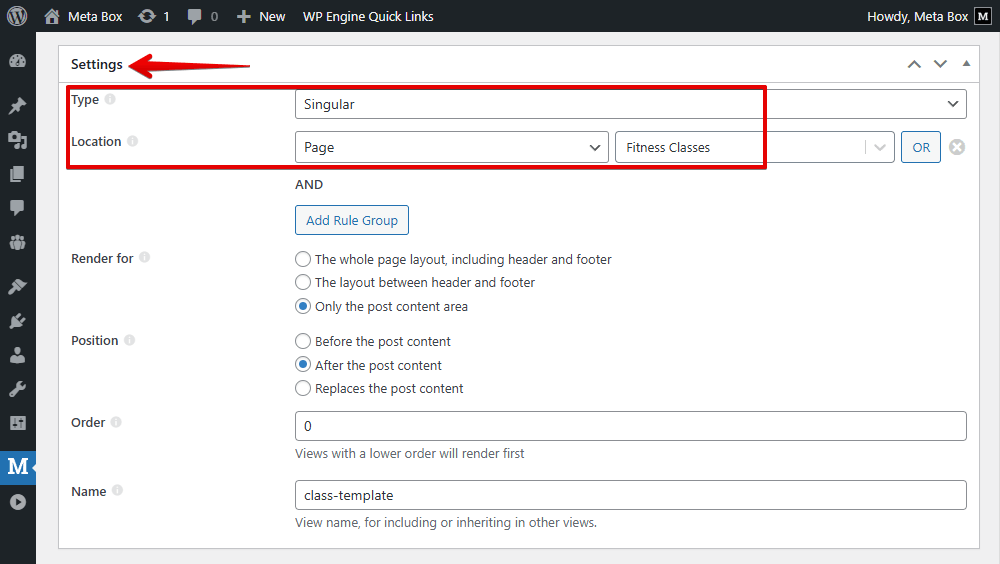
After inserting all the fields you need, scroll down to the Settings section to set location for the template. I set the type as Singular and choose the created page to apply this template to it.
On the frontend, all the data of the class is displayed. But it seems to need to be made more beautiful.

Back to the created template, and modify the code a little bit. You can add some div tags and classes for styling easily.

Then, move to the next tab to add some CSS.
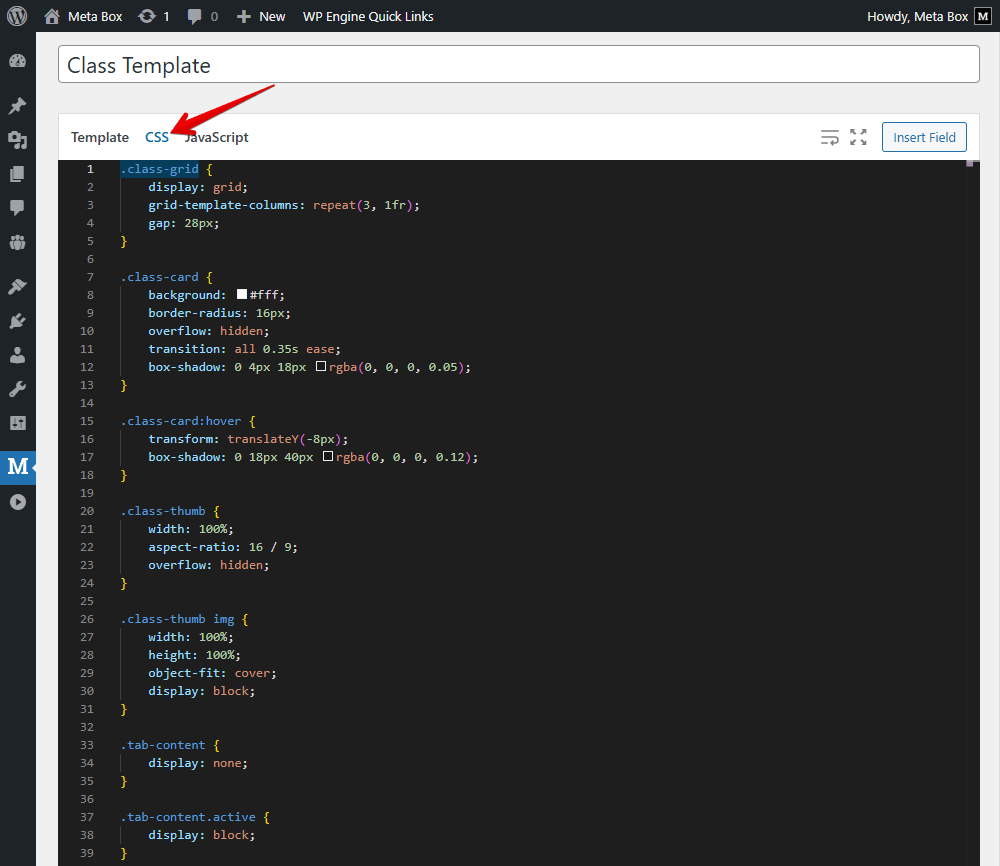
Now, we have a new look that is clearer and more attractive.

Next, let’s go ahead to the key step of this tutorial.
Build the Filter Based on Parent Posts
To build and activate the filter, we’ll use JavaScript.
Set Logic for the Filter Tabs and Posts
Back to the created template, and add some parts of code:

In there:
- (1) The line is to declare that we’ll use a JavaScript library to handle the filtering behavior.
- (2) The part is to separate the parent posts.
- (3) Loop through each of the parent post, and create the new buttons for parent posts relatively. The first one as active by default, meaning it is selected initially. Then,
data-tab="tab-{{ parent.ID }}is to assign an ID to each tab, which will be used to connect it with its corresponding content below. - (4) I create another loop to generate the content for each tab. Each parent post has its own content block, and they are linked together using the same ID. This allows JavaScript to display the correct content when a tab is clicked.
- (5) Inside the post loop, I add
{% if post.post_parent == parent.ID %}to check and show only the post whose parent ID matches the current parent. This is the core logic behind the filter.
I also added some CSS for styling the new classes.
Handle the Interaction with JavaScript
Move to the JavaScript tab to add actions for the filter. The code will be run after all the HTML is rendered.
jQuery(document).ready(function ($) {
    $('.class-tabs').each(function () {
        var $container = $(this);
        $container.find('.tab-btn').on('click', function () {
            var tabId = $(this).data('tab');
            $container.find('.tab-btn').removeClass('active');
            $(this).addClass('active');
            $container.find('.tab-content').removeClass('active');
            $container.find('#' + tabId).addClass('active');
        });
    });
});

Specifically:
$('.class-tabs').each(function () {: This code loops through each container on the page.var $container = $(this): is to assigns the current one to the container, so all interactions inside it can be handled independently.
Then, when a button is clicked, the next part will be run.
First, var tabId = $(this).data('tab') is to get the ID of the tab that needs to be shown.
Then, I update the active state for the buttons, including removing the active class from all the buttons, and then add it to the clicked button. This ensures that only one tab is selected.
The same logic applies to the content: all tab contents are hidden, and only the one matching the selected tab ID is displayed.
I uploaded all the code on GitHub, so you can refer to it.
Now, on the page, you can see the buttons are the parent posts we have. The filter works well.
(gif)
Try to update the structure of the posts to check how the filter works.
Last Words
It's a simple yet powerful way to improve content navigation and help users find exactly what they're looking for.
For more WordPress customization tips for filtering and searching, you can have more guides from this tag. See you in the next tutorials!
- Advanced Map Listings
- Author Bio
- Better 404 Page
- Blogs for Developers
- Building a Simple Listing Website with Filters
- Building an Event Website
- Building Forms with MB Frontend Submission
- Coding
- Create a Chronological Timeline
- Custom Fields Fundamentals
- Design Patterns
- Displaying Posts with Filters
- Download and Preview Buttons
- Dynamic Banners
- Dynamic Landing Page
- FAQs Page
- Featured Products
- Filter Posts by Relationships
- Filter Posts by Taxonomy
- Full Site Editing
- Google Fonts
- Gutenberg
- Hotel Booking
- Latest Products
- Logo Carousel
- MB Builder Applications
- MB Group Applications
- MB Views Applications
- Most Viewed Posts
- Opening Hours
- OTA Website
- Pricing Table Page
- Product Page
- Product Variations
- Querying and Showing Posts by Custom Fields
- Recipe
- Related Posts via Relationship
- Restaurant Menus
- SEO Analysis
- Simple LMS
- Speed Up Website
- Taxonomy Thumbnails
- Team Members
- User Profile
- Video Gallery
 How to Filter Projects by Dynamic Status Based on Date Range - Using MB Views
  How to Filter Posts by Relationships - P2 - Using MB Views
  How to Create a Simple Listing - P6 - Using MB Views